For your crew and subbies, on their phone. Today shows the jobs you’re booked on. Start your timer, add photos, sign off the day and finish the job from one screen.
Open Today
Sign in to Footing on your phone. Today opens first. Tap Today in the menu to get back to it. Subbies also have Work orders in the menu.
- The top shows how many jobs you’re on (Assigned), how many are done (Completed) and when the next one starts (Next).
- Under Run sheet you see today’s jobs in order. A job that runs over a few days shows every day, marked Continuing.
- Nothing today? It says No assigned work for today and shows your next job under Next up.
Work a job
Tap the job in the run sheet.
The Job card shows the client, site, time and address. Tap Open map for directions, or Call client if they have a number.
Sign any safety forms first.
If the office has given you forms for this job, they show under To sign before you start. Tap each one, fill it in and sign.
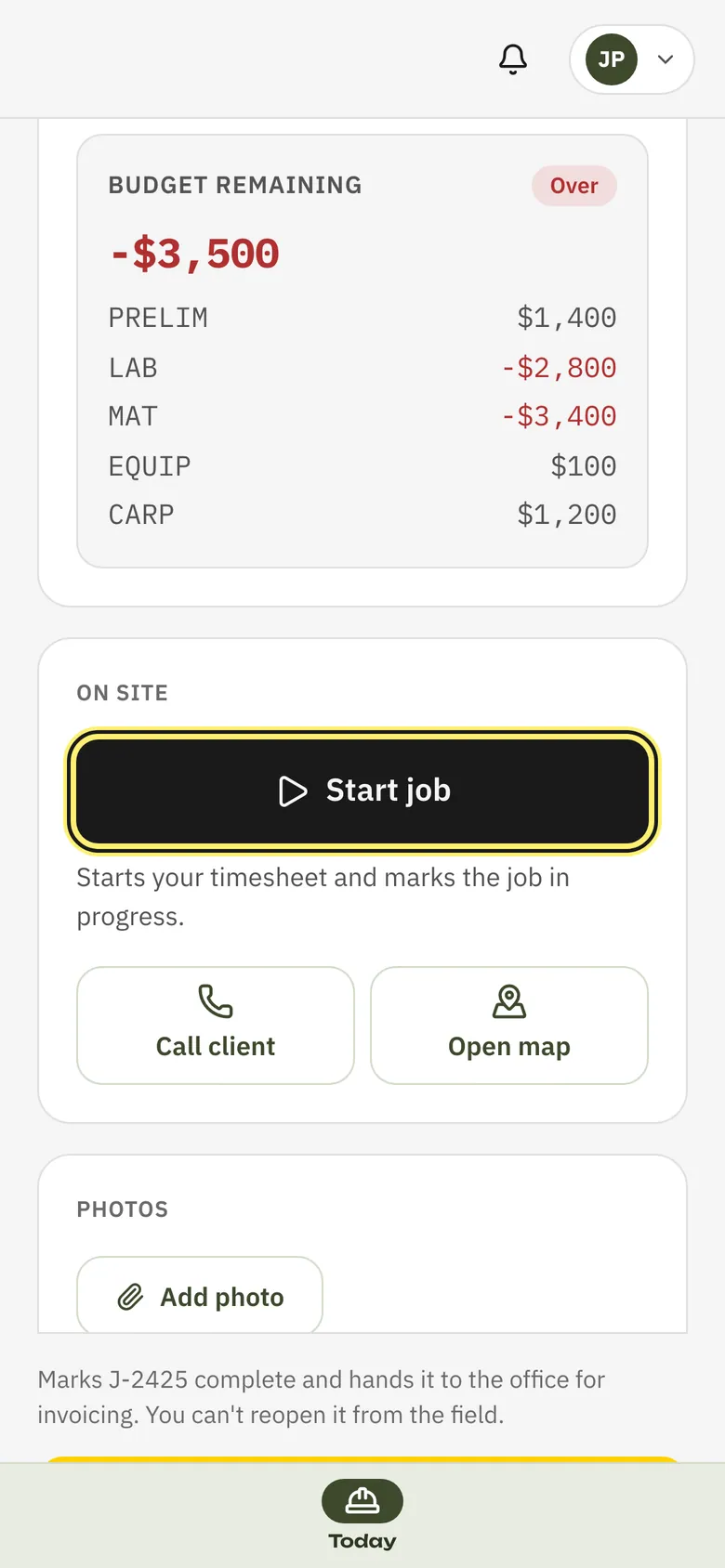
When you get to site, tap Start job.
It starts your timesheet and marks the job in progress. The clock shows On the tools and how long you’ve worked.
Going for smoko or lunch? Tap Start break. Tap End break when you’re back.
Break time comes off your hours.
Add photos under Photos.
Tap Add photo, then Take photo or Choose from library. Then tap Upload photo.
When you leave site, tap Stop timer.
Your hours go to the office as a timesheet.
When the job is finished, tap Complete job.
It marks the job complete and hands it to the office for invoicing. You can’t reopen it from your phone.
Sign off the day
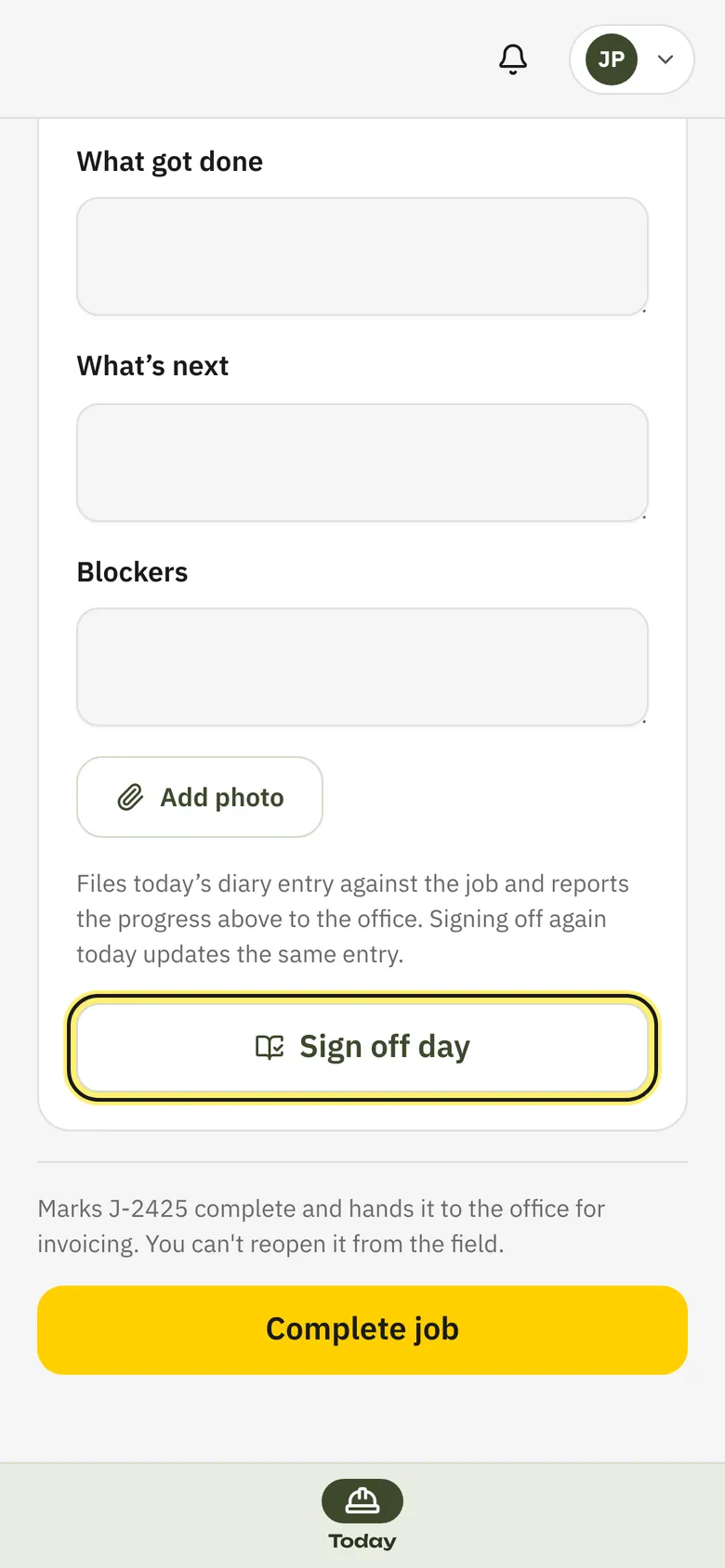
At the end of each day, fill in the End of day sign-off card for the job. It’s the site diary.
Set Progress with the minus 5 and plus 5 buttons.
It starts from the last progress anyone reported on the job.
Fill in What got done, What’s next and Blockers.
Add a photo if it helps. Tap Add photo on the card.
Tap Sign off day.
It files today’s diary entry against the job and reports your progress to the office. Sign off again the same day and it updates the same entry.
Crew can report something wrong with the Log defect card on the same screen. Subbies don’t get that card: the office logs defects and gives them to the trade that needs to fix them. Defects given to you show under My defects. See Defects, outstanding items and the completion report.
For subbies: accept your work order
A job only shows for you once the builder issues your work order. Accept it before you start.
Tap Work orders in the menu, then tap the job.
My work orders lists every job with a work order. Read the Package details and the Terms.
Under Acceptance, type your name in Signer name and sign in the box with your finger.
Tap Sign acceptance.
Footing saves the signed work order as a PDF. Tap Open PDF to see it.
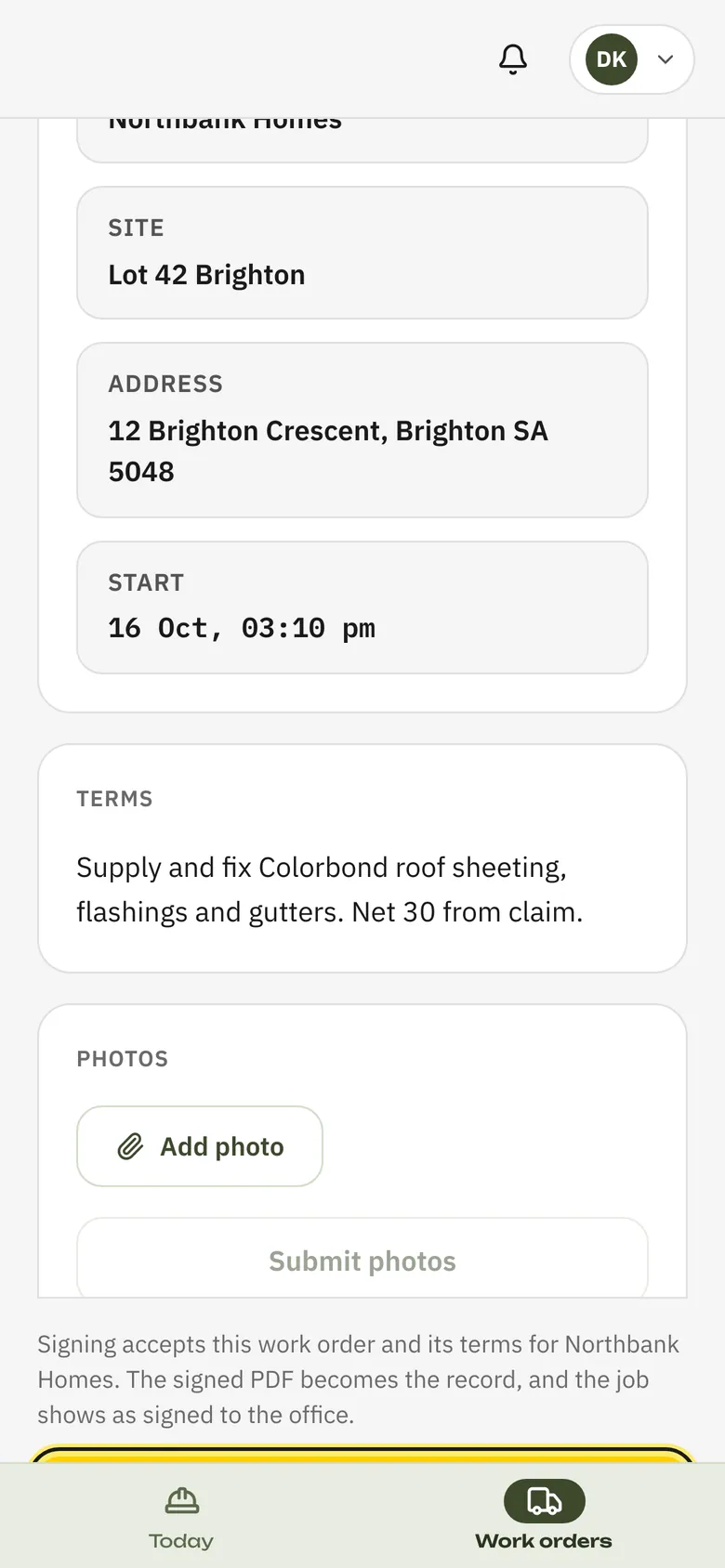
When the work is done, add photos under Photos.
Tap Add photo, pick the photo, then tap Submit photos.
Tap Mark complete.
It tells the builder the job is finished and ready to inspect. You can’t undo it.
Under Contracted packages you might also see what each of your packages is worth and what you’ve claimed so far. It’s read only. The builder records your claims.
If Footing asks for your induction
Subbies need a current induction. If yours isn’t done, or has run out, Today and Work orders take you to Complete your induction first.
Tap the Start button. It shows the name of the builder’s induction.
Answer each question, sign at the bottom and tap Submit form.
Tap Continue.
Footing takes you back to where you were going.
What the office sees
- The job shows as completed once you finish it. For staff, it shows in progress once you start.
- Your hours arrive as a timesheet when you stop your timer.
- Your photos and diary sign-offs are filed against the job.
- Subbies: the job’s Crew card shows Work order signed once you sign.
Office staff: see Assign your crew and subbies to put people on a job.
Related guides
Still stuck? Email support@folkware.com.au and tell us what you were trying to do.