Book your crew and subbies on a job. The job goes on their Today list in Footing, and each person gets an email with the site and dates.
Before you start
Everyone you book needs a Footing login. Your own staff can be any role. Subbies need a Contractor login. See Invite your team.
Book your crew
Go to Jobs and open the job. Find the Crew card.
It’s on the right of the job page. On a phone, it’s further down, under Action queue.
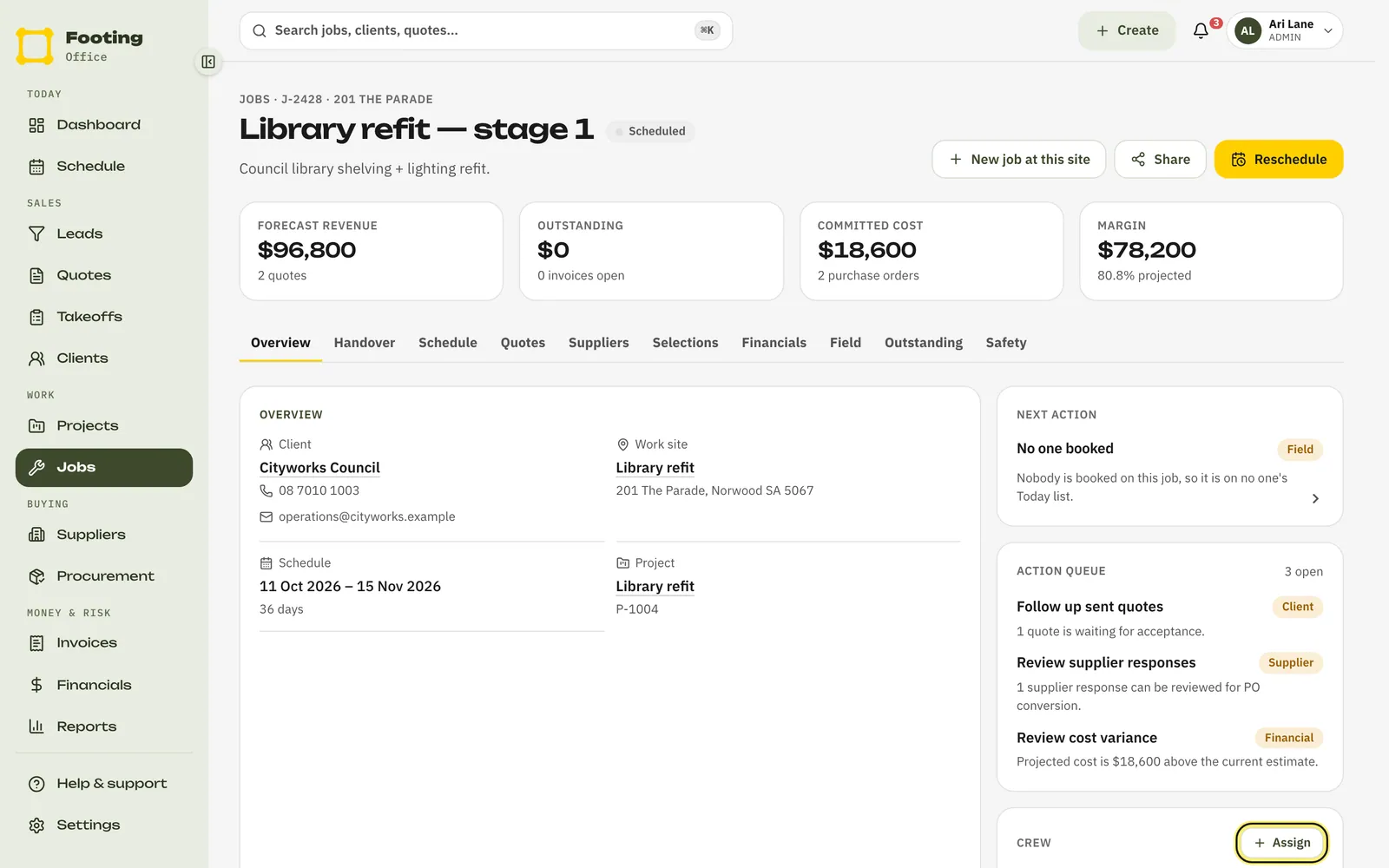
Click Assign.
Under Book as, pick Lead, Assist or Subcontractor.
Use Lead or Assist for your own staff. Use Subcontractor for subbies. Only Contractor logins show when you pick Subcontractor, and a subbie can only be booked that way.
Tick people on the People tab, or tick a whole crew on the Crews tab.
Type in Filter by name to find someone fast. Anyone already booked shows On the job. Crews are the teams you set up in Settings → Teams.
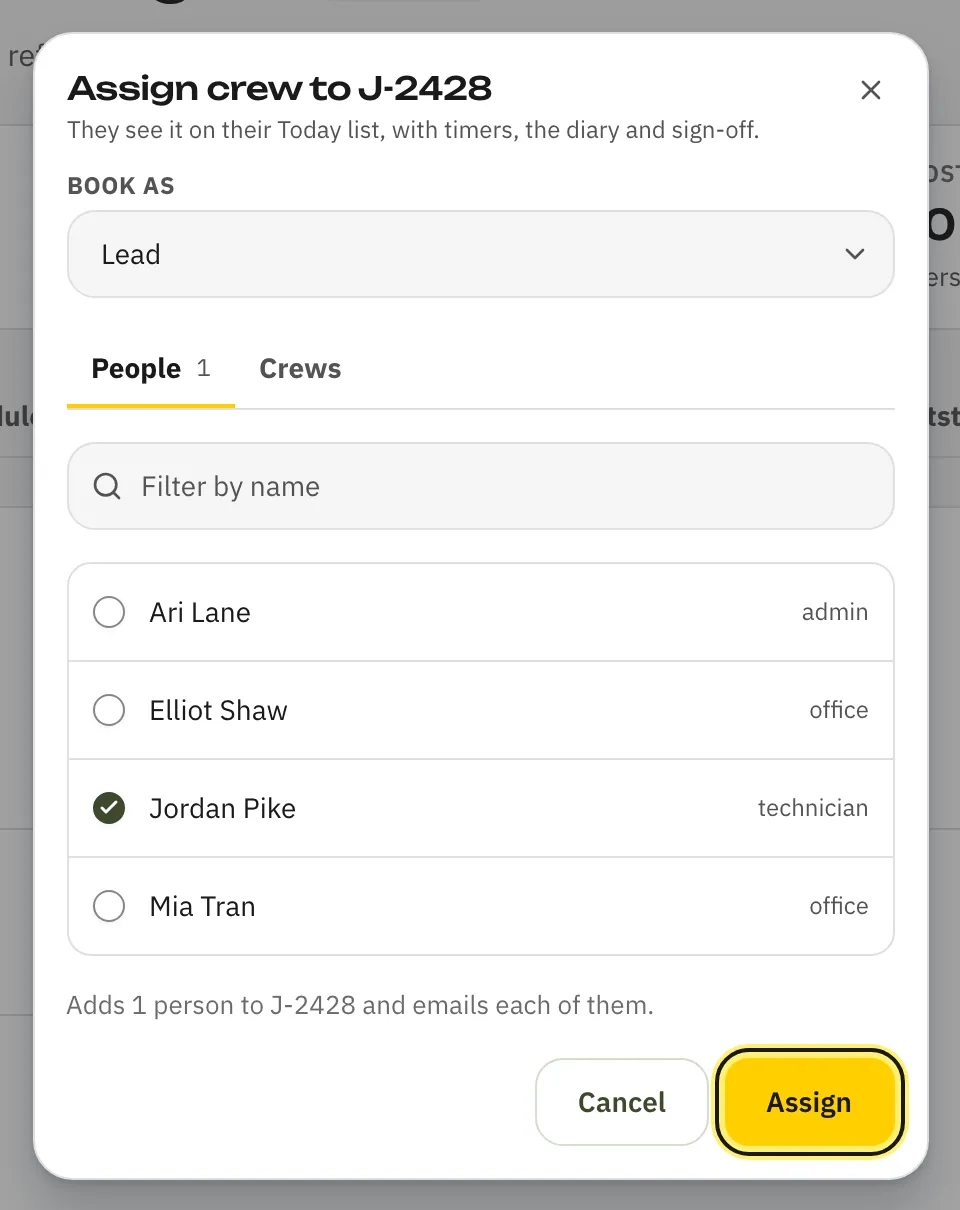
Click Assign.
Footing books them and emails each person. They show on the Crew card straight away.
Book a subbie and issue their work order
A subbie doesn’t see the job until you issue their work order. The work order sets out the terms they sign to accept the job.
Click Assign, set Book as to Subcontractor, tick the subbie and click Assign.
On the Crew card they show as Work order not issued.
Click Issue work order under their name.
Type the Terms.
Put in the scope, how the price works and when you pay. The terms are printed on the work order.
Click Issue work order.
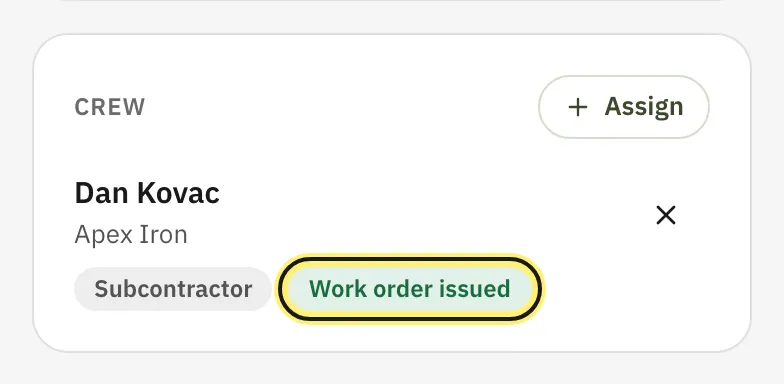
Their chip changes to Work order issued. Once they sign it, it changes to Work order signed.
Change a role or take someone off
- To swap between lead and assist, click the Lead or Assist chip under their name and pick the other one.
- To take someone off, click the X next to their name, then Remove from job. The job drops off their Today list. If they’re a subbie with an issued work order, the work order is withdrawn.
- A subbie who has signed their work order has no X. The signed work order stays with the job.
Footing doesn’t email anyone when you change their role or take them off.
Link a sub work order to their login
If you also track a subbie’s contract value and claims with a sub work order, pick their name under Contractor login when you make it. They can then see that package and its claims in Footing. See Sub work orders and subbie claims.
What they see
- An email from Footing with the subject “You’re booked on” and the job number and name. It says your business has booked them as lead, to assist, or as subcontractor. It lists the site address and dates, and has an Open Footing button that opens their Today list.
- Subbies’ emails also say their work order comes next, and the job shows in Footing once it’s issued.
- In Footing, the job shows on their Today list on the days it’s scheduled. Subbies see it once you issue their work order. They sign it from their Work orders list. See Your day on Today.
Spot jobs with no one booked
- A scheduled job with nobody on it shows No one booked under Next action or in the Action queue on the job page. Click it to jump to the Crew card.
- Your dashboard’s On site today list shows today’s jobs under each person. Jobs with nobody on them sit under Nobody booked.
Related guides
Still stuck? Email support@folkware.com.au and tell us what you were trying to do.