Give each subbie a sub work order with a contract value. Then record their progress claims against it, certify them and mark them paid, so you always know what’s left to pay.
Before you start
- The subbie needs to be in Footing as a supplier (under Suppliers), or have a Contractor login, or both. A Contractor login lets them see the package in Footing. See Invite your team.
- A sub work order tracks the money. It’s not the same as the work order a subbie signs to accept a job on site. That one is on the job’s Crew card. See Assign your crew and subbies.
Make a sub work order
Open the job. Click the Suppliers tab, then Work orders.
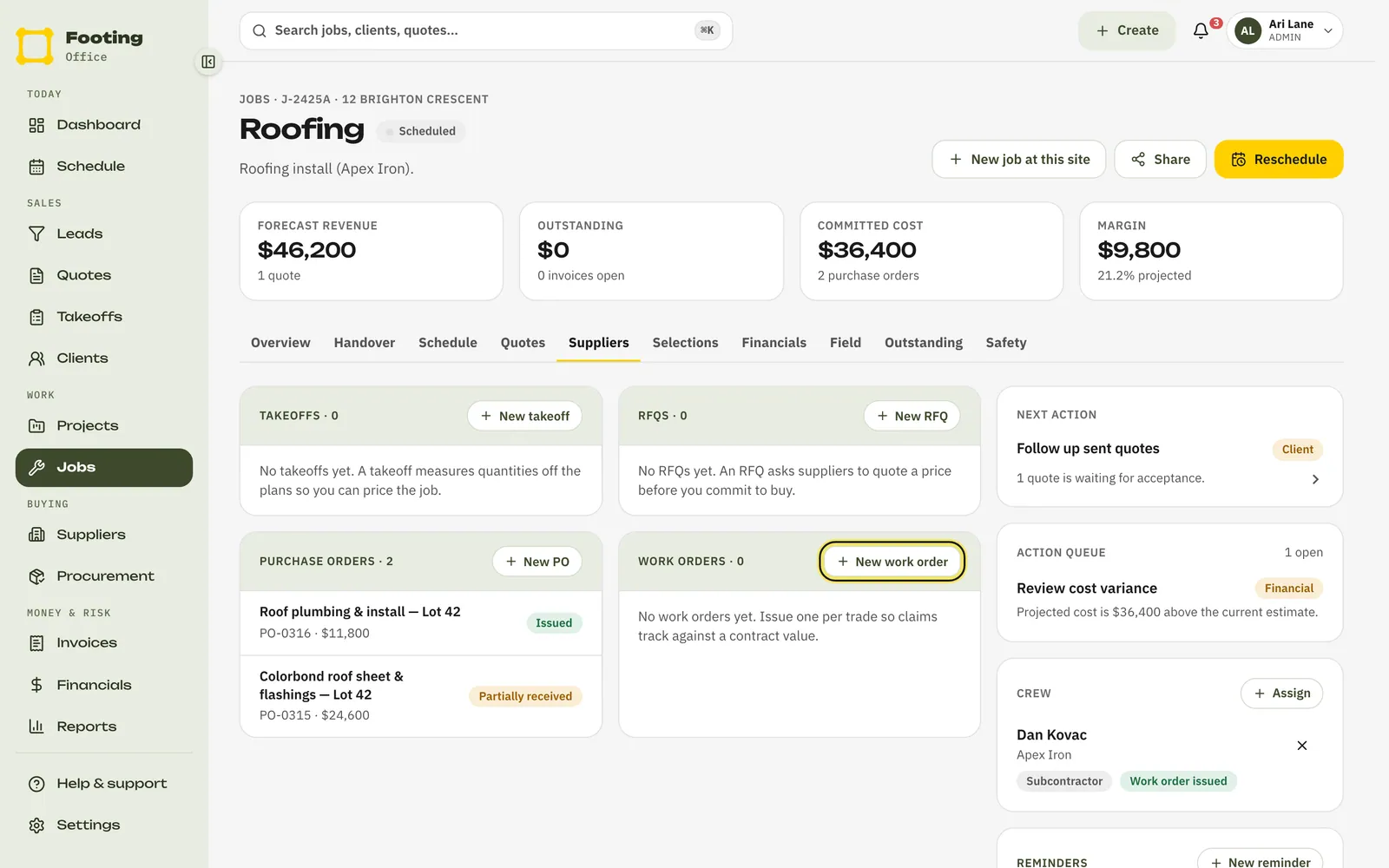
Click New work order.
Fill in the form.
- Subcontractor: pick the supplier.
- Contractor login: pick their login if they have one. You need a supplier, a login, or both.
- Scope title: what they’re doing, like “Roof sheeting and flashings”.
- Cost code: the cost code it counts against. Optional.
- Contract value ($): the price you agreed.
- Terms (days): how many days you have to pay a claim once you certify it. It starts at 30.
- Retention (%): how much to hold back from each claim you certify, like 5. Leave it blank to hold nothing back. It can’t be more than 100, and you can’t change it once the work order is made.
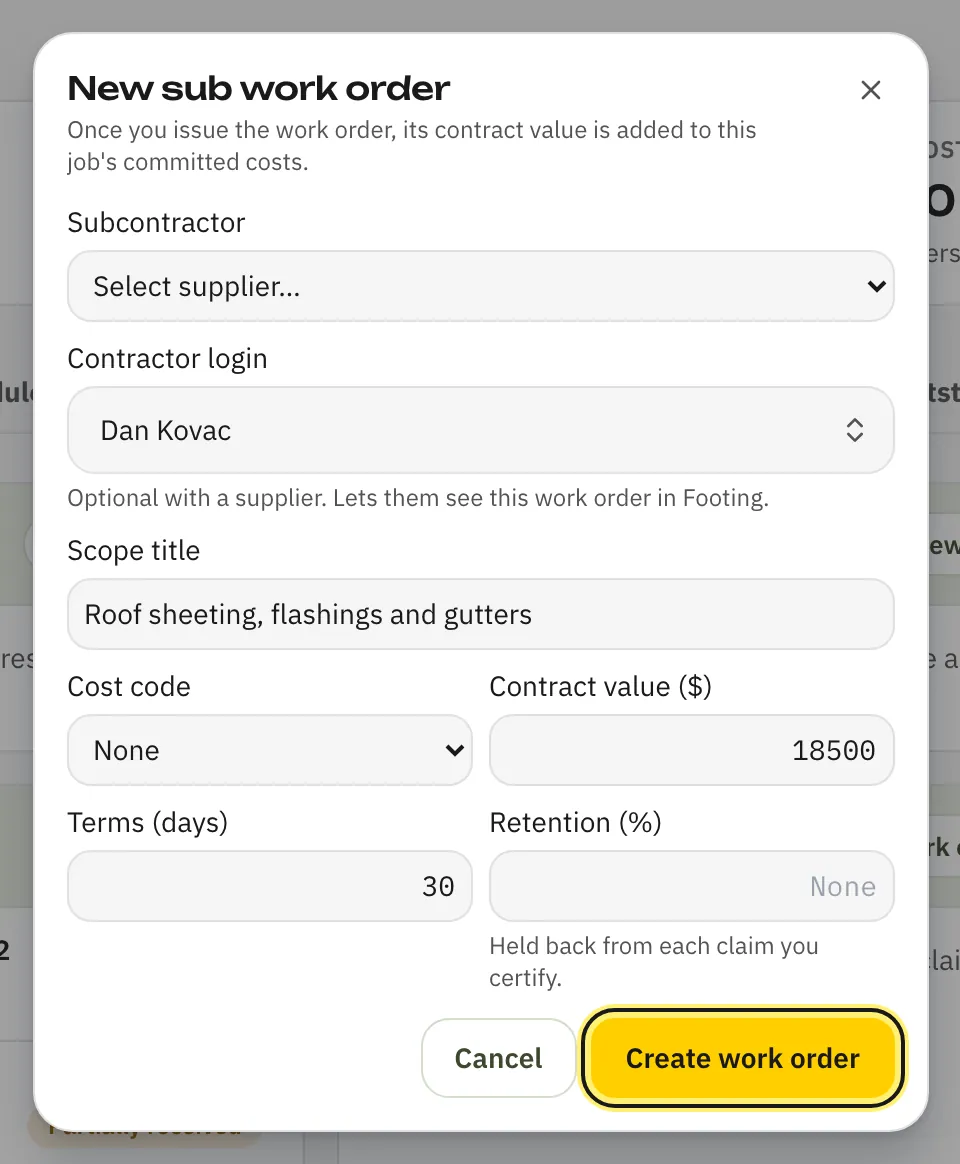
Click Create work order.
It’s saved as Draft. Nothing is sent.
Click Issue, then Issue work order.
Footing adds the contract value to the job’s committed costs.
Record and certify a claim
When the subbie sends you a progress claim, record it against their work order.
On the work order, click Record claim.
Type the amount they’re claiming and click Record claim.
The bar shows how much they’ve claimed of the contract value, and what’s remaining. If claims go past the contract value, the remaining amount turns red.
Click the claims line under the bar.
It reads like “1 claim · $0 certified · $0 paid”. It opens the list of claims.
Click Certify to accept the claim, or Reject.
Certifying books the cost to the job. The claim then shows a “pay by” date, worked out from the work order’s terms. If the work order has retention, the claim also shows how much was held back, like “− $400 retained”.
Reject asks Why was it rejected? Type the reason and click Reject claim. The claim stops counting towards what they’ve claimed, and the reason shows next to it in the list.
Once you’ve paid it, open the claims list again and click Mark paid.
Hold back and release retention
Retention is money you keep back from each claim, usually until the work is finished and any defects are fixed.
- Set Retention (%) when you make the work order.
- Each time you certify a claim, Footing holds back that share of it.
- The work order shows the rate and where the money is, like “5% retention · $400 held · $0 released”.
When it’s time to pay retention out:
Click the claims line under the bar.
Next to the claim, click Release.
That claim’s retention moves from held to released on the work order. Each claim’s retention is released on its own.
Change the contract value
If the scope changes, add a variation instead of making a new work order.
On the work order, click Add variation.
Type a Title and the change in dollars, then click Add variation.
Put a minus sign in front for work taken out, like “-1500”.
Click Approve to add it to the contract value.
Or click Reject, type why and click Confirm reject. Only approved variations change what claims are measured against.
What the subbie sees
- With a Contractor login linked, the work order shows on their Work orders page under Contracted packages. They see what it’s worth, what they’ve claimed, and each claim with its status. It’s read only. They can’t make a claim in Footing, so you record the claims they send you.
- Without a login, they don’t see it in Footing at all.
- Footing doesn’t email the subbie when you make or issue a sub work order, or when you certify, reject or pay a claim. Let them know yourself.
Where it shows up
- Each work order shows its status: Draft, then Issued.
- Each claim shows Submitted, then Certified or Rejected, then Paid.
- The claims line keeps a running total of what’s certified and paid for that subbie.
- The retention line shows what’s held back and what you’ve released.
For good habits with subbies, see Working with subbies.
Related guides
Still stuck? Email support@folkware.com.au and tell us what you were trying to do.