Claim progress payments from your client on a head contract. You enter how far along the work is. Footing works out the amount, serves the claim and tracks the client’s reply.
Before you start
To serve a claim by email, your client needs an email address in Footing. Without one, you can still record that you served it by post, in person or through a portal.
Set up the head contract
You only do this once for each project.
Go to Projects, open the project and click the Claims tab.
Fill in the contract you signed.
- Title: a name for the contract.
- Contract value: in dollars, ex GST.
- Retention %: what the client holds back from each claim. It starts at 5.
- Response days: how many business days the client has to reply to a claim. Between 1 and 15. It starts at 10.
- State: whose Security of Payment Act applies.
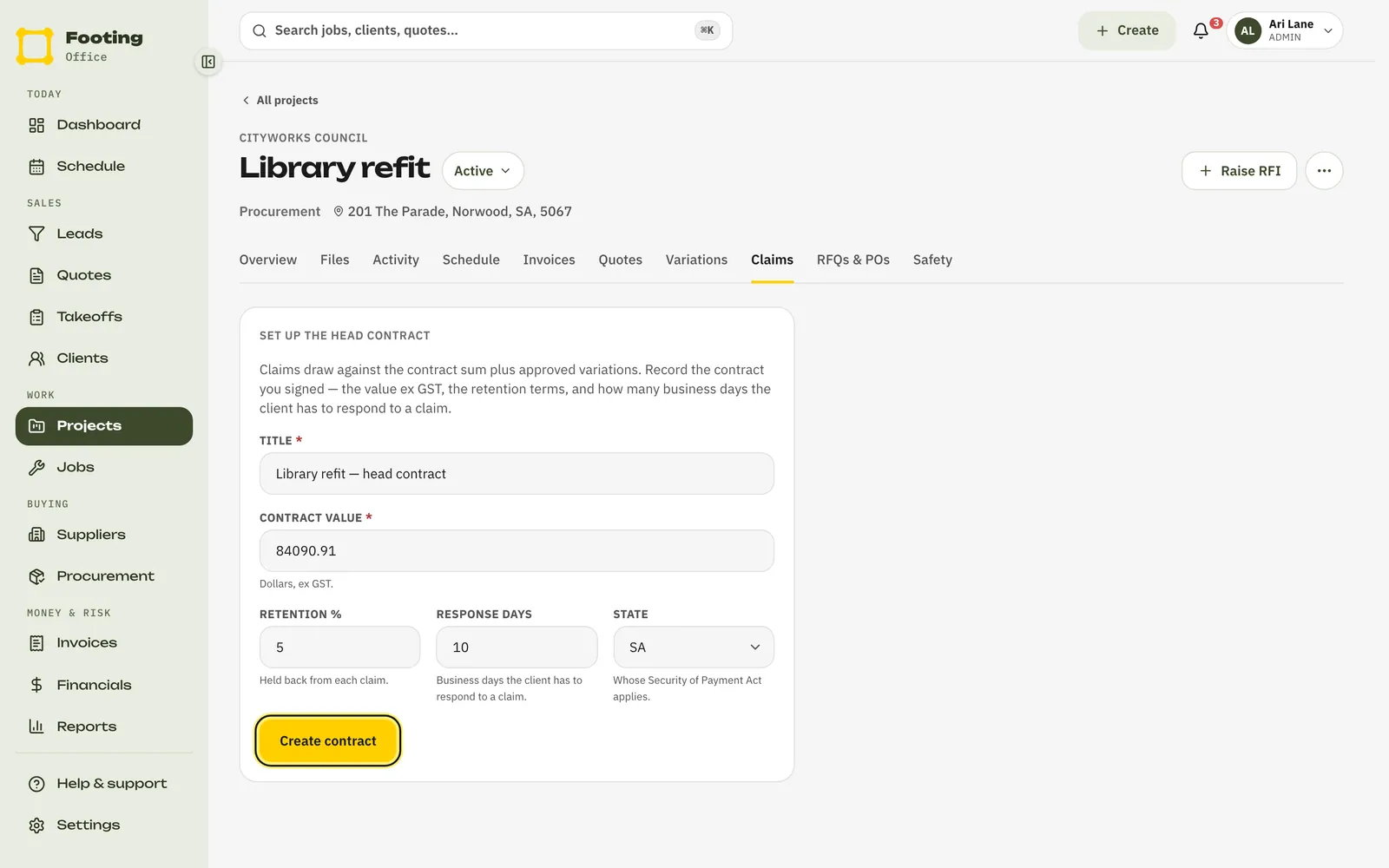
Click Create contract.
Make a claim
On the Claims tab, find New claim.
There’s a line for the contract, and one for each approved variation.
Under Now at (cumulative), type how far along each line is.
Type the total so far, not just this month. If you claimed 40% last time and you’re now at 60%, type 60. Footing shows This claim for each line and the total at the top.
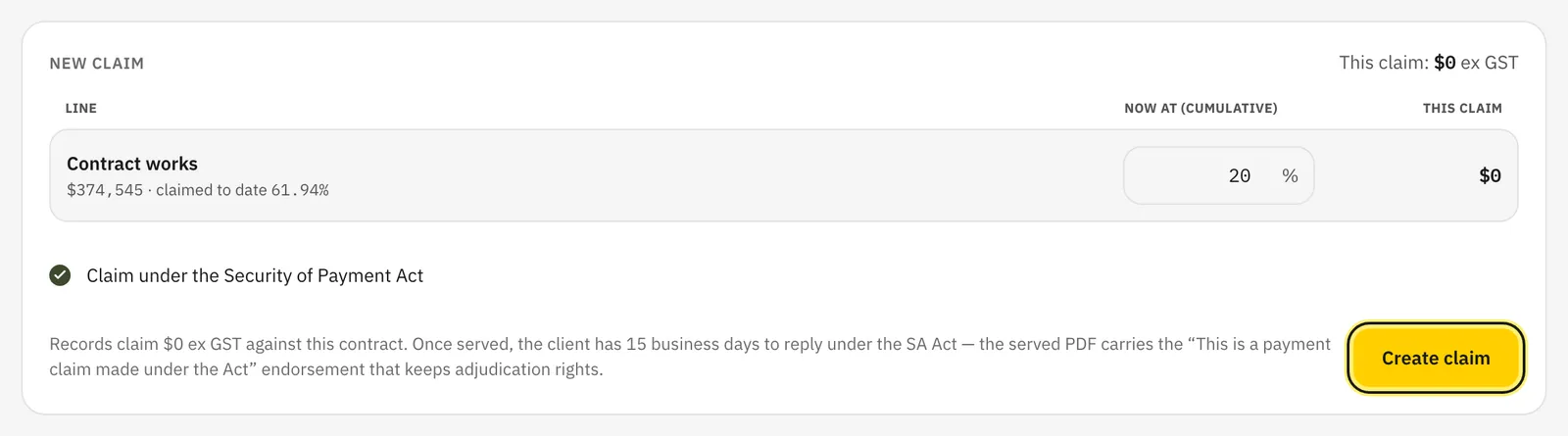
Leave Claim under the Security of Payment Act ticked.
That makes it a payment claim under the Act. Untick it only for a claim that isn’t one.
Click Create claim.
It shows in the Claims list as Draft. Nothing is sent yet.
Serve the claim
On the claim, click Serve claim.
The box tells you when the client’s payment schedule is due.
If the client has an email address, click Email claim.
Footing emails them the claim PDF.
No email address? Pick How it was served (Post, In person or Portal) and the Date served. Click Record as served.
Nothing is emailed. Footing just records how and when.
The claim now shows Served, with a line like “Emailed to … on …”. Click Download claim PDF for the exact copy you served.

Record the client’s payment schedule
When the client’s payment schedule arrives, click Record payment schedule on the claim.
For each line, type what they certified under Certified.
Leave it blank if they certified the full amount. If they cut it, type why under Reason if reduced.
Click Record schedule.
The claim shows Certified. Footing holds back retention on the certified amount, and the certified % becomes this month’s progress on the project’s jobs.
When the money lands, click Mark paid.
What your client sees
An email from your business, with your logo or business name at the top. The subject is “Payment claim”, the claim number and the contract name. It shows:
- the reference date and the amount claimed, ex GST and inc GST
- that it’s a payment claim made under the Act, if you left that ticked
- the date their payment schedule is due
- the claim PDF, attached
It has an Acknowledge receipt button. They can confirm they got it without logging in. When they do, your claim shows “acknowledged” and the date.
While you wait
- A claim you emailed sits in Awaiting response until you record the schedule or mark it paid. See RFIs and chasing a response.
- The top of the Claims tab shows the Contract sum, Claimed to date and Retention withheld.
Deadlines and your rights differ by state. See Security of Payment: how progress claims get you paid.
Related guides
Still stuck? Email support@folkware.com.au and tell us what you were trying to do.