Put a change to the price or the program in writing. Send it to your client to sign on their phone, and keep who said yes, and when, on the project.
Raise the variation
Open the project, click the Variations tab, then New variation.
Type a short title where it says What changed?
Pick the job and the reason.
It starts on Whole project. If the cost belongs to one job, pick that job. You can’t change the job once the variation is created. For Reason, pick Client request, Design change, Scope change, Latent condition or Other.
Fill in the cost, time and why.
Cost inc GST is the price including GST. For an omission, put a minus in front, like -500. Footing shows the GST split under it. Extension of time is the whole days it adds to the program. In What and why, say what was found or asked for, and who asked.
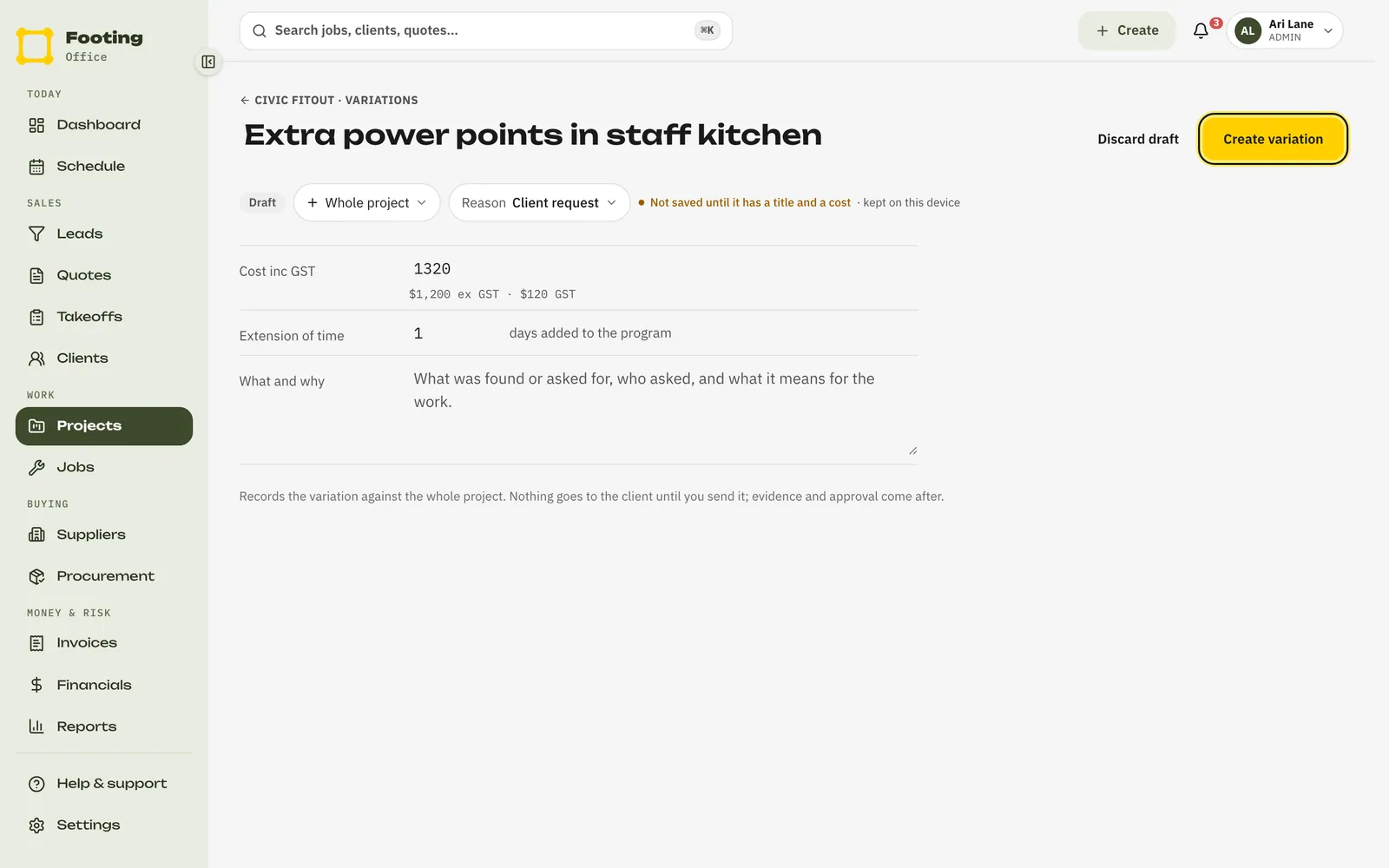
Click Create variation.
It’s saved as Proposed. Nothing goes to your client yet. You can still change it: each field saves when you click out of it.
Click Attach evidence to add photos, the engineer’s note or your client’s email.
The files are saved to the project’s Files too.
Send it to your client
Click Send to client.
Footing emails the approval link to the client on the project, if they have an email address saved. It doesn’t tell you whether an email went, so check their client page first.
To send the link yourself, click Copy client approval link.
It’s under Approval once the variation is sent. Text or email it to them.
What your client sees
An email about the variation.
The subject reads “Variation VAR-00003 from [your business] — [title]”. It shows the cost with GST, any time it adds, and the date the link runs out. It has a Review & approve variation button.
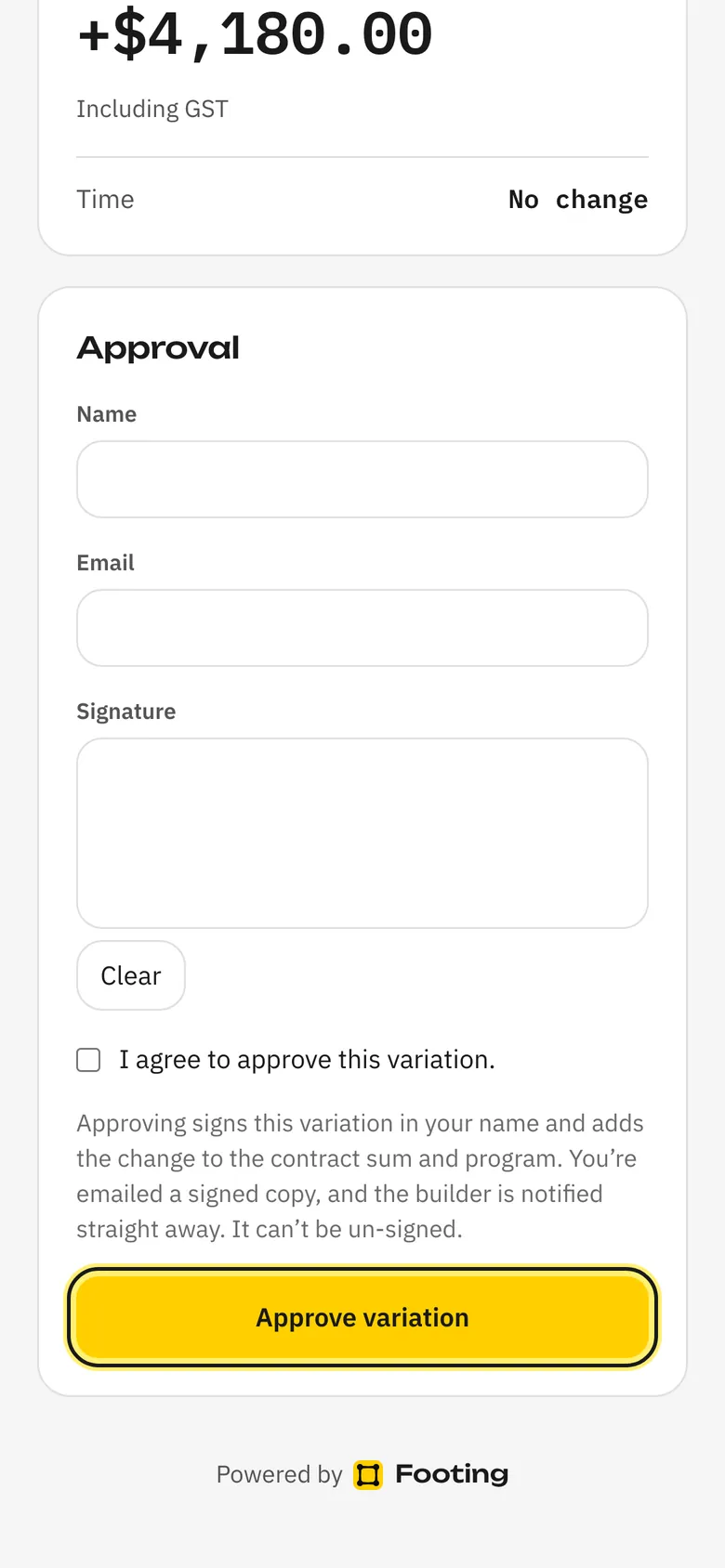
A page with the variation and a place to sign.
They see the total change, the time change and your description. They type their name, and their email if they like. Then they sign with a finger or mouse, tick I agree to approve this variation. and click Approve variation. No login needed.
A signed copy by email.
Once they approve, they’re emailed a signed copy. You get a notification in Footing straight away, and the variation shows who approved it.
They said yes by phone or email
Open the variation and click Record approval.
You can do this before or after you send it.
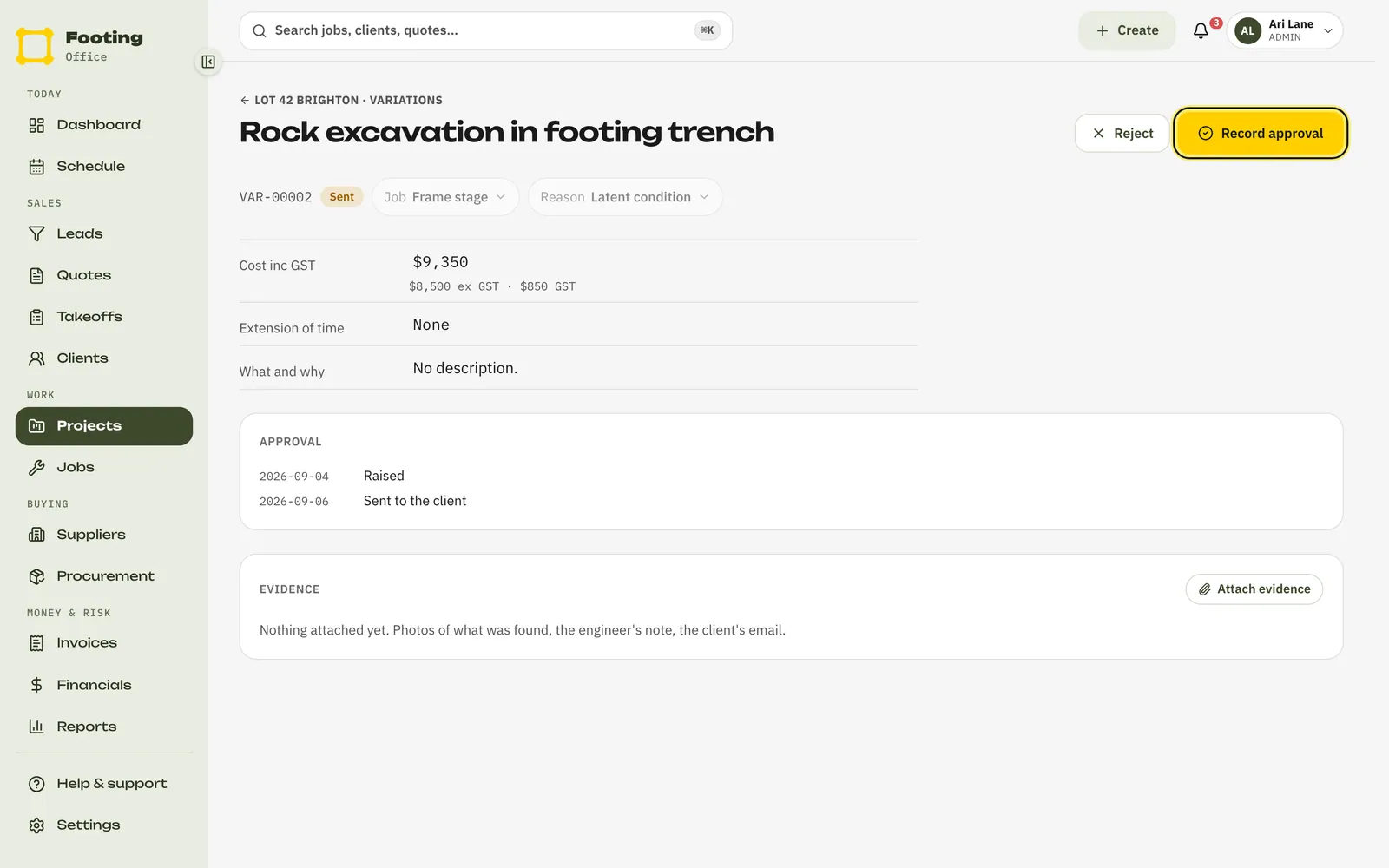
Under Who approved it?, write who said yes and how.
For example, “Priya Nair, by email”. Then click Record approval. No signature is captured, so keep their email as evidence.
If they say no, open the sent variation and click Reject. Write why, then click Reject variation. The reason stays on the record.
What happens next
- A variation goes Proposed, then Sent, then Approved or Rejected. The totals for each sit at the top of the Variations tab.
- Approved variations are added to the contract sum. You can claim them in your next progress claim.
- A proposed variation can be deleted. Once it’s sent, it stays on the record.
Related guides
Still stuck? Email support@folkware.com.au and tell us what you were trying to do.