Keep a list of everything left to finish a job: certificates, approvals and defects. Chase the people who owe you, then make a completion report to hand over.
List what’s outstanding
The Outstanding tab is for paperwork you’re waiting on before the job can close.
Open the job and click the Outstanding tab.
Click Add item.
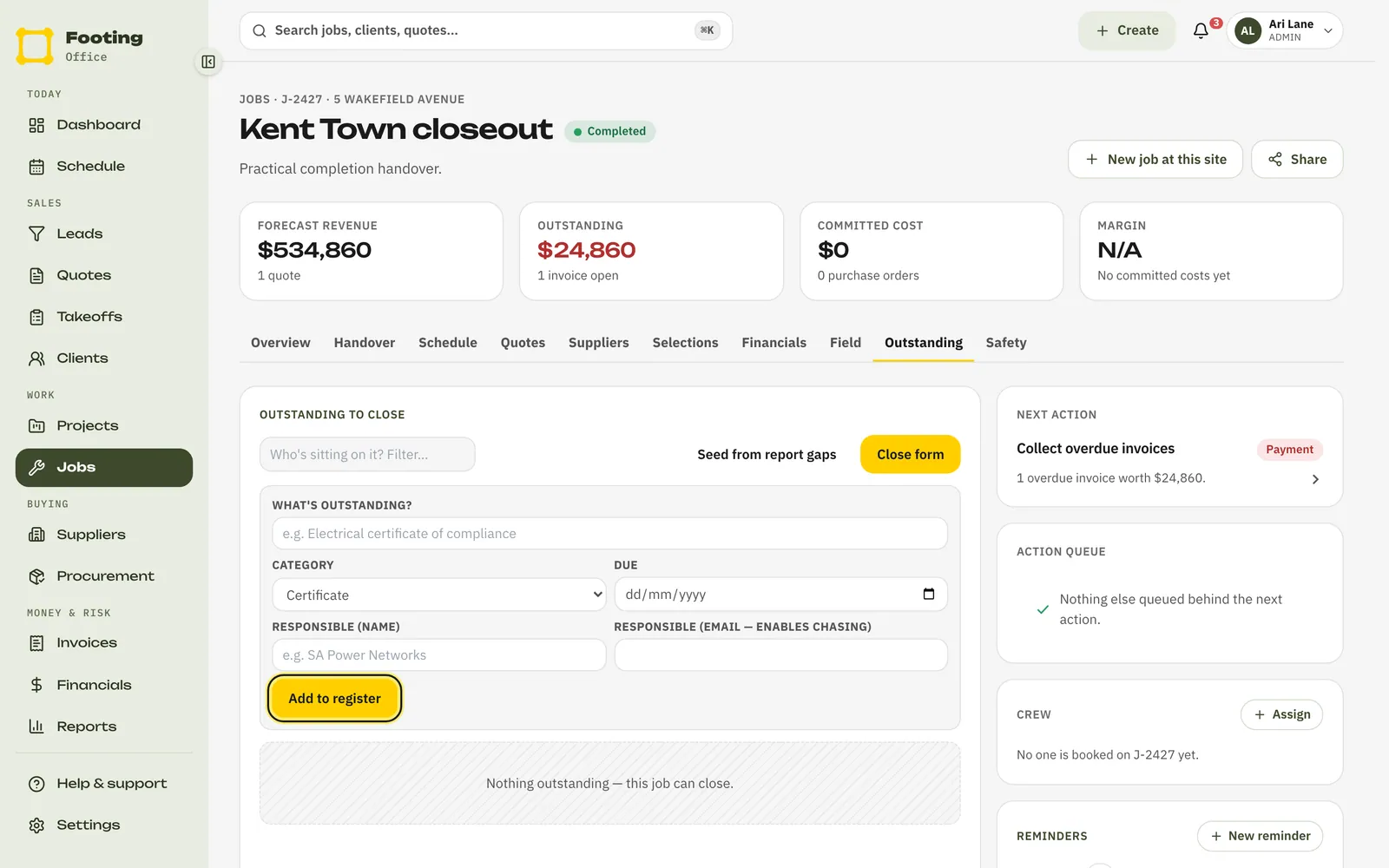
Say what it is and who owes it.
Fill in What’s outstanding? and pick a Category: Certificate, Authority approval, Handover doc or Other. Add a Due date and who’s responsible. Add their email too if you want to chase them from Footing.
Click Add to register.
Overdue items go to the top, then the oldest. Each item has buttons:
- Mark done — they say it’s done. It shows as “reported done — needs verification”.
- Verify & close — you’ve checked it. It comes off the list. Office staff and admins can do this.
- Chase — emails the responsible person. It only shows if you added their email.
What they see when you chase
An email with the subject “Still waiting: [the item] — [your business]”. It says how many days it’s been open, and when it was due if you set a date. It has an Acknowledge & set a date button. That opens a page where they add their name and the date they’ll get back to you. No login needed. They still send you the certificate or document the usual way.
Once you’ve chased an item, it also shows on your Awaiting response list. See RFIs and chasing a response. It comes off when you Verify & close it.
Log and fix defects
Open the job, click the Field tab, then Defects.
Click Log defects.
Walk the site and add them all in one go. Each row is one defect: what’s wrong, the location, the severity (Low, Medium or High) and the subbie who’ll fix it. If that subbie has their own Footing login, pick it in the last list. Click Add another defect for the next one.
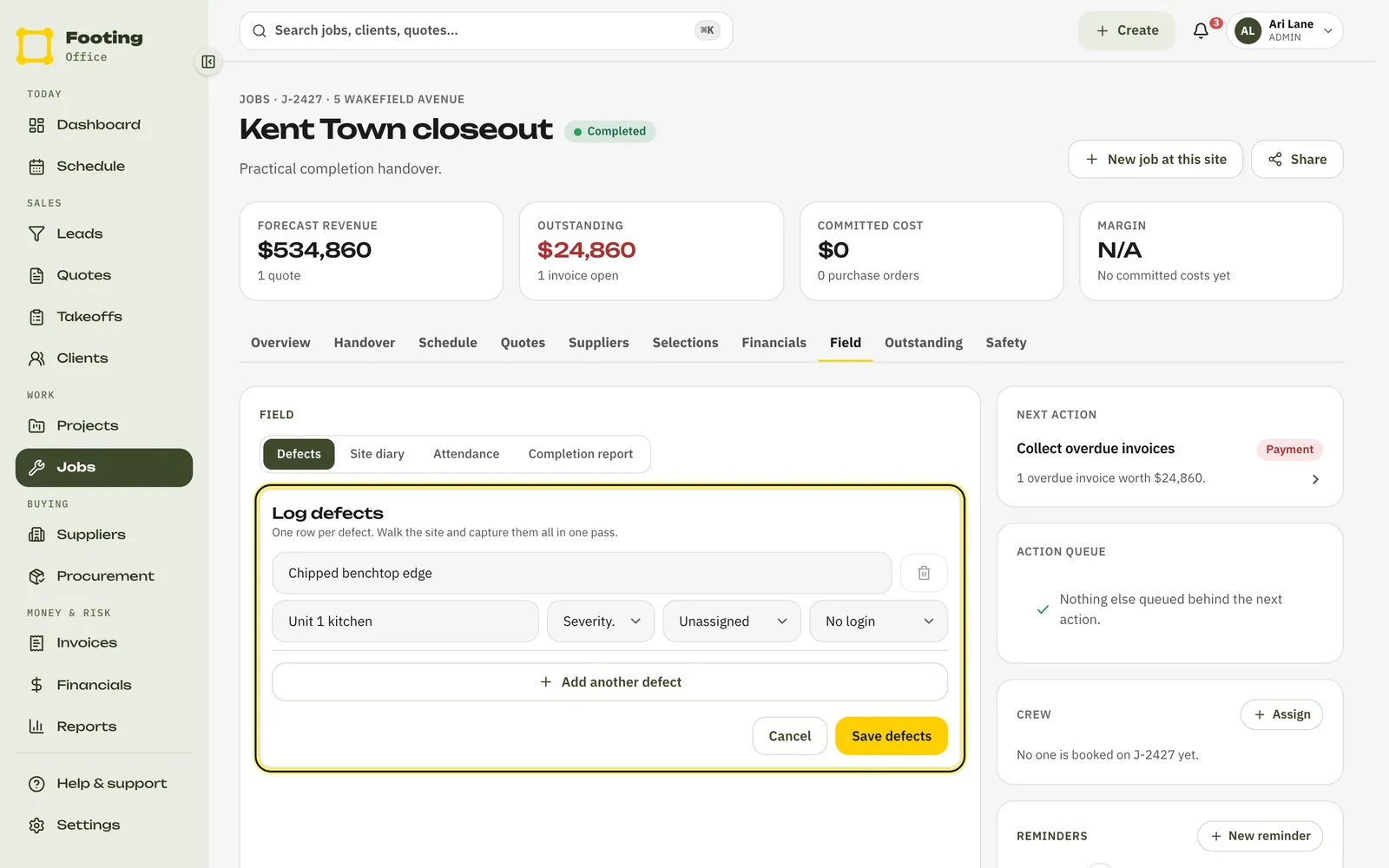
Click Save defects.
Click a defect to open it. You can add a note, then:
- Mark fixed — the work is done. It moves to Fixed.
- Verify & close — you’ve checked the fix. It’s closed.
- Reopen — the fix isn’t good enough, or it’s come back.
Every step is kept on the defect’s Trail. Open defects also show on the Outstanding tab.
Make a completion report
A completion report is a PDF that sums up how the job finished, with a checklist of what’s done. It uses a report template. An admin sets these up under Settings, then Templates, then Report templates.
On the job’s Field tab, click Completion report.
Pick a template and add any findings.
Choose from Template. Findings is optional: anything worth recording about how the job finished.
Click Generate report, then Download PDF.
Under the button is the checklist. Done items have a tick. Anything required that’s missing is marked “required: missing”.
To link it to an invoice, click Attach invoice next to the report.
Pick the Invoice and click Attach. The button only shows once the job has an invoice. This links the two in Footing. It doesn’t add the PDF to the invoice email.
What your client sees
Nothing is sent when you make a report. Download the PDF and send it to them yourself. If you’ve shared the job with them as a Client portal link, every report on the job is listed there under Reports.
Related guides
Still stuck? Email support@folkware.com.au and tell us what you were trying to do.