A job is the work at one site. Give it a client, a site and dates, and it shows on your Schedule. Its costs, crew and paperwork all collect on its page.
Create a job
Go to Jobs and click New job.
Or click Create at the top, then Job. On a project’s page or the Schedule, the button is Schedule job. From a project, the job goes on that project and the client and site are filled in for you.
Pick the client from the list that opens.
New client? Type their name and pick New client. If the client has only one site, Footing picks it for you.
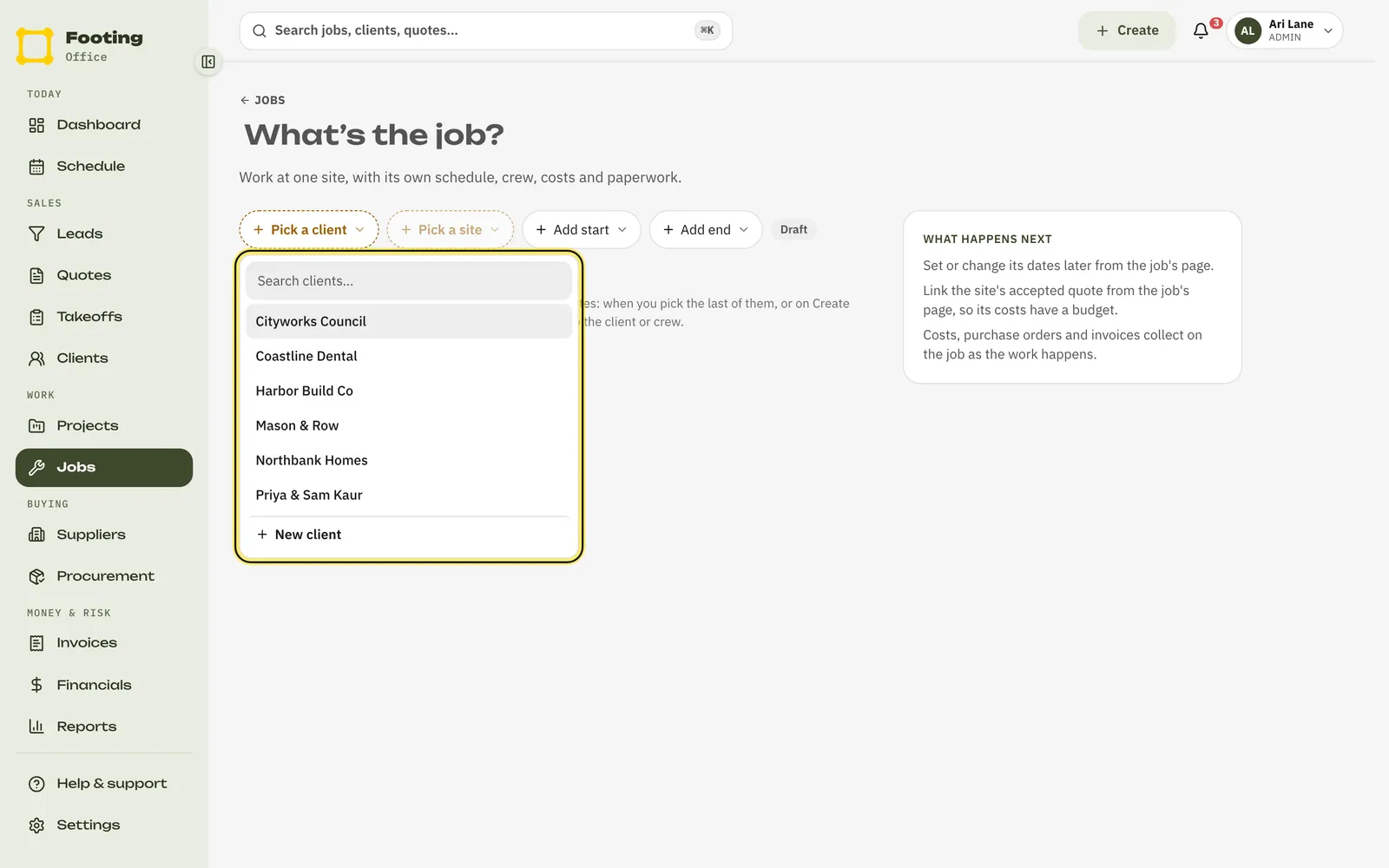
Click Pick a site and choose where the work is.
No site yet? Pick New site and type the address. It’s saved to the client.
Click Add start and Add end to set the dates.
Pick Tomorrow, Next Monday or In 2 weeks, or choose Another day. With a start date, the job is Scheduled. Without one, it stays a Draft.
Type the job title where it says What’s the job?
Click Create job.
Footing saves the job, gives it a number like J-2425, and opens its page. Nothing is sent to your client or crew.
Find your way around a job
Each job page has tabs along the top. On a phone, they’re in a list at the top: tap it to switch.
- Overview — the client, site, dates and project.
- Handover — the estimator’s handover to the site team: a checklist and the trade allowances. It isn’t a handover to your client.
- Schedule — the start and end dates.
- Quotes — the job’s quotes and invoices.
- Suppliers — takeoffs, supplier prices, purchase orders and work orders.
- Selections — choices your client has to make.
- Financials — money in, costs and margin.
- Field — defects, the site diary, attendance and the completion report.
- Outstanding — what’s left before you can close the job.
- Safety — safety forms and incidents for this job.
See it on the Schedule
Go to Schedule. Switch between Week and Month, and use the arrows to move. Click Weekends to show Saturday and Sunday in the week view.
- Click a day to see every job on it. Click a job to open it.
- Jobs with no start date sit in Needs scheduling at the top.
Next: put your crew on the job, so it shows on their Today screen.
Change a job's dates
Jobs on a project are moved on the project’s Schedule tab.
Open the project and click the Schedule tab.
Each job is a bar on the timeline.
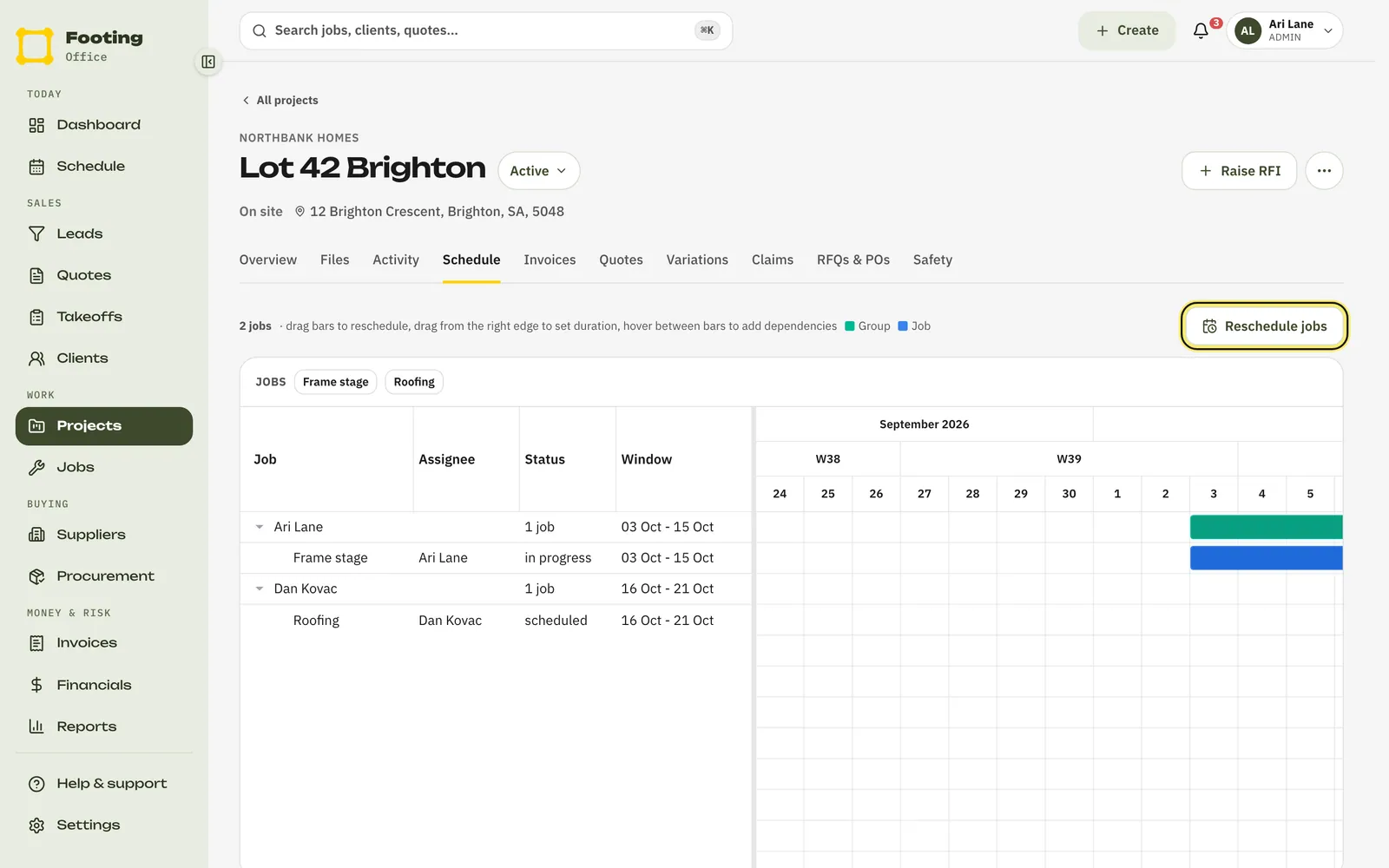
Drag a bar to move the job. Drag its right edge to make it longer or shorter.
On a phone, or if you’d rather type the dates, click Reschedule jobs. Pick the Job, set the Start and End, then click Save dates.
Related guides
Still stuck? Email support@folkware.com.au and tell us what you were trying to do.