Bill your client for a job. Footing emails them the invoice as a PDF, with a Pay invoice button if you take card payments.
Before you start
Check your client has an email in Footing. It’s where the invoice goes. Without one, Footing marks the invoice sent but can’t email it.
Make the invoice
Go to Invoices and click New invoice.
Or click Create at the top, then Invoice.
Pick the job you’re billing.
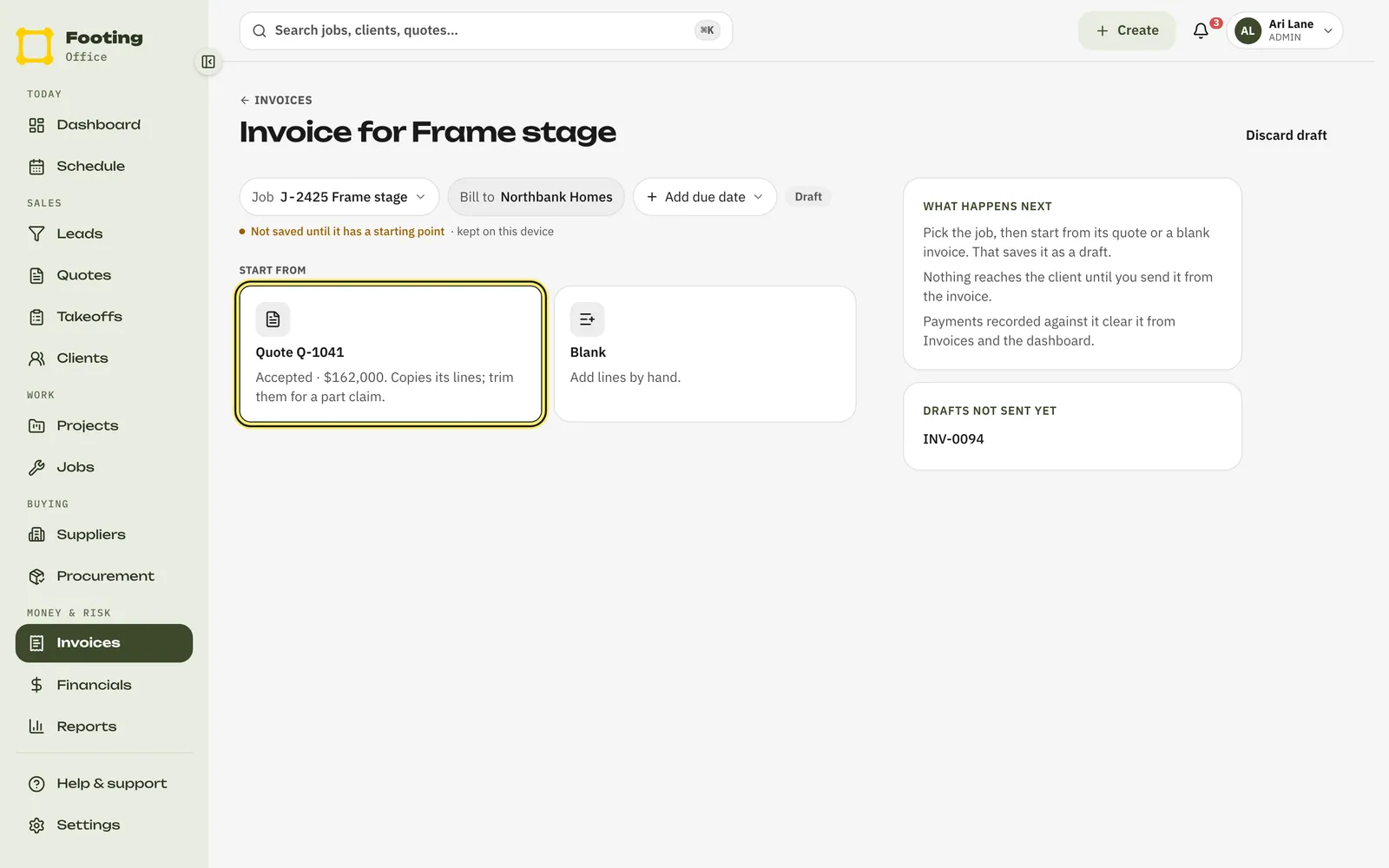
The job list opens by itself. Jobs with a quote to bill are at the top, under Quoted, ready to bill. The client comes with the job, under Bill to.
To have the due date set for you, click Add due date first and pick 7 days, 14 days or 30 days. Or set it on the invoice later.
Pick where to start.
If the job has a quote, click it to copy its lines, or click Blank to add lines yourself. Billing part of the job? Start from the quote and trim the lines. No quote on the job? Footing skips this step. Either way, the invoice opens as a draft.
Check the lines and dates.
Each line has a Description, Qty, Unit price and Tax %. Unit prices are ex GST, and Tax % starts at 10 for GST. Click Add line item for more. Set the Issued and Due dates at the top.
To finish it later, click Save changes. You don’t need to before you send: Send invoice saves your changes first.
Click Send invoice, then Send invoice again to confirm.
The box names the email address it goes to. Footing saves any changes you haven’t saved, marks the invoice Sent and emails it to your client.
What your client sees
An email from your business, sent through Footing.
The subject reads “Invoice INV-0094 from [your business]”. Your logo or business name is at the top. It shows the amount due and the due date, with the invoice attached as a PDF. Your business email is at the bottom for questions.
If you take card payments, a Pay invoice button.
They pay on Stripe’s checkout page and land on a page that says Thanks, you’re paid. Footing marks the invoice paid for you. See Take card payments with Stripe.
After you’ve sent it
Open the invoice from the Invoices list to see where it’s at.
- Email invoice sends it to your client again. A box names the email address first. If it’s past the due date, the email says it’s a reminder.
- Download PDF saves the same PDF your client gets.
- Record payment and Mark paid are for when the money comes in. Mark paid asks first and says how much it records.
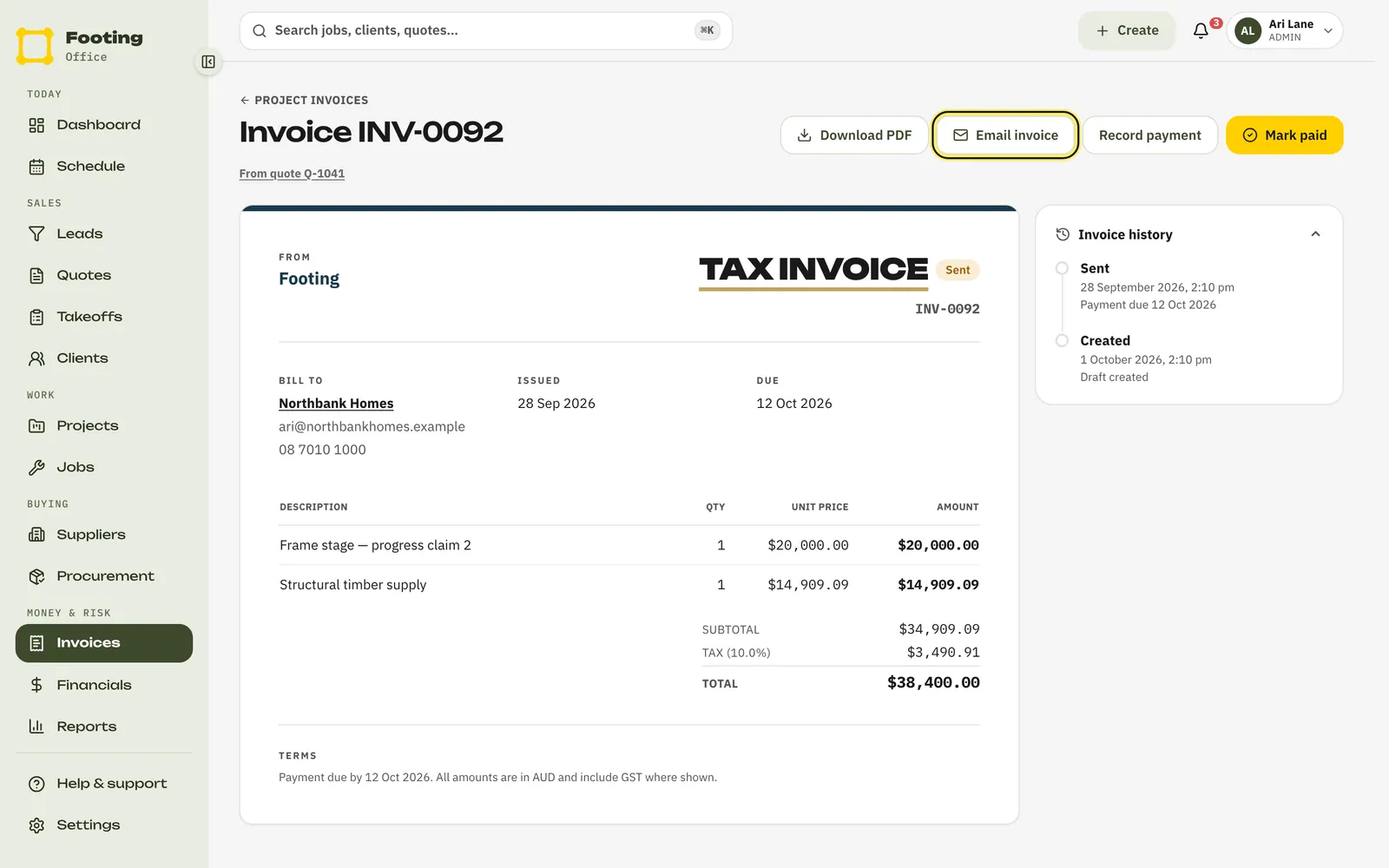
- The day after the due date, Footing marks the invoice Overdue and reminds your office. See Chase overdue invoices.
- Using Xero? The invoice goes to Xero when you send it. The top of the invoice says Goes to Xero when sent on a draft, and shows an In Xero link once it’s there. If it says Didn’t reach Xero, click Retry. See Connect Xero.
Drafts wait on the Invoices page under Drafts. On a wide screen, click one to see it beside the list, then click Send.
Related guides
Still stuck? Email support@folkware.com.au and tell us what you were trying to do.