Connect Stripe and your invoices get a Pay invoice button. Clients pay by card, and the money goes straight to your own Stripe account.
Before you start
- You need to be an admin or office user in Footing.
- You need a Stripe account. Don’t have one? You can make one while you connect.
Connect Stripe
Go to Settings, then Card payments.
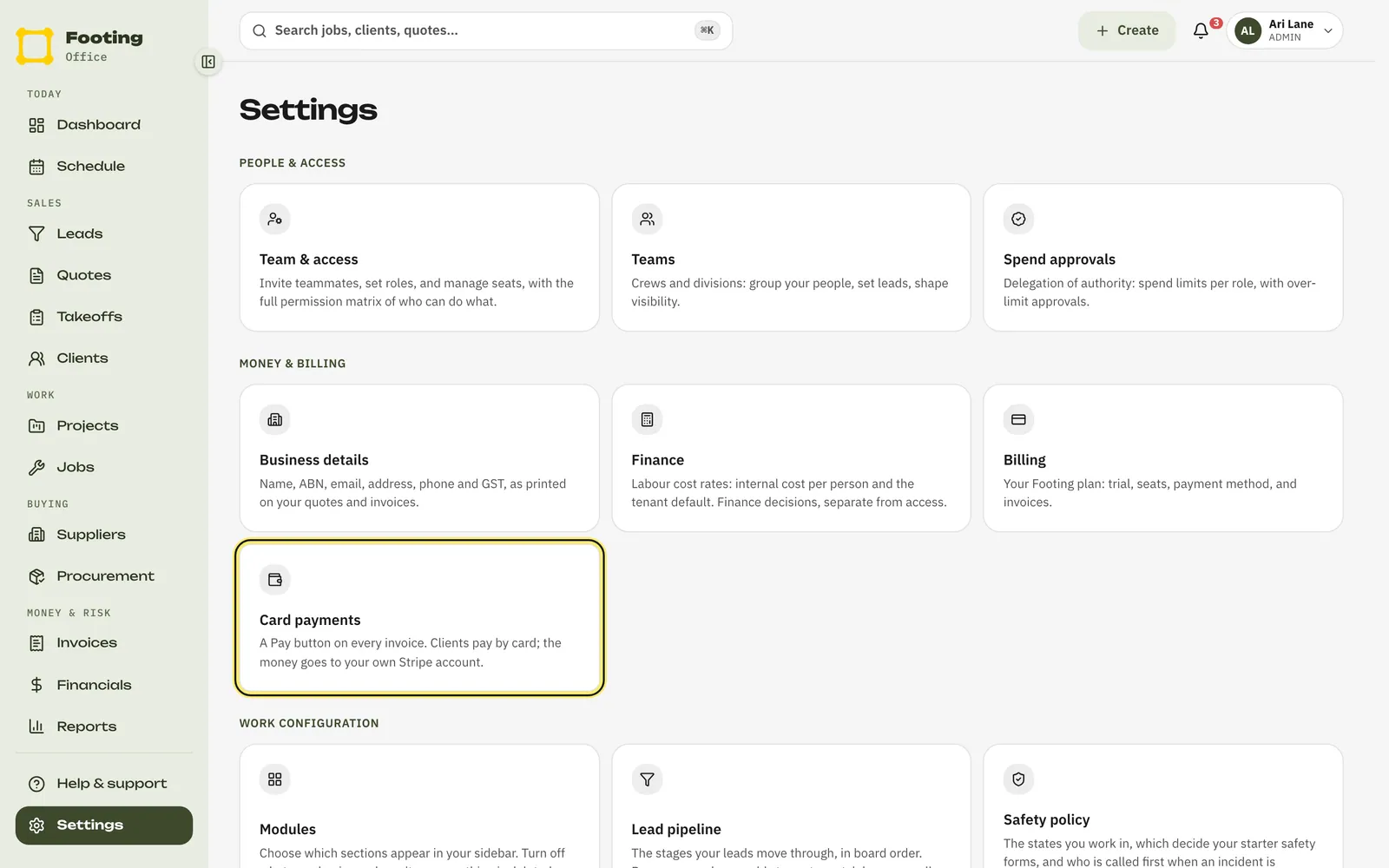
Click Connect Stripe.
Stripe opens. Sign in, or create an account, and follow Stripe’s steps.
Come back to Footing and check it's ready.
Stripe sends you straight back. Three checks show whether you’re ready: Pay button on invoices, Card payments and Payouts to your bank. Each one says On or Not yet.
If you see Finish setup in Stripe, click it.
Stripe checks your business before clients can pay. Give it what it asks for, then come back to this page.
What the status means
The label next to Card payments at the top of the page tells you where you’re at.
- Taking payments — all set. Clients can pay by card.
- Finish setup — Stripe still needs details from you. Click Finish setup in Stripe.
- Test mode — you connected a Stripe test account. Clients can go through checkout, but no real money moves. Connect your live account before you send real invoices.
- Reconnect needed — Footing was removed from your Stripe account. Click Reconnect Stripe. Invoices show no Pay button until you do.
- Not available — card payments aren’t switched on for your Footing yet. Contact Footing support.
What your client sees
Your invoice email has a Pay invoice button.
The PDF invoice has a pay link too, and so does the invoice in your client’s portal.
They tap it and pay on Stripe's secure checkout page.
It always asks for the amount still owing, even after a part-payment. If the invoice is already paid, it tells them there’s nothing to pay.
They land back on a Footing page that says Thanks, you’re paid.
If they leave checkout without paying, the page says No payment was taken and gives them a Try paying again button.
After they pay
- Footing marks the invoice paid. You don’t need to record it yourself.
- If Xero is connected, the payment goes to Xero too. See Connect Xero.
- The payment shows under Recent card payments on the Card payments page, and on the invoice.
- Stripe pays the money into your bank on its own schedule, with its fees taken off.
To stop taking card payments, click Disconnect Stripe at the bottom of the page. Invoices stop showing a Pay button, including ones you’ve already sent.
Related guides
Still stuck? Email support@folkware.com.au and tell us what you were trying to do.