See who owes you, send the invoice again when it’s late, and record the money when it lands.
Find what’s owing
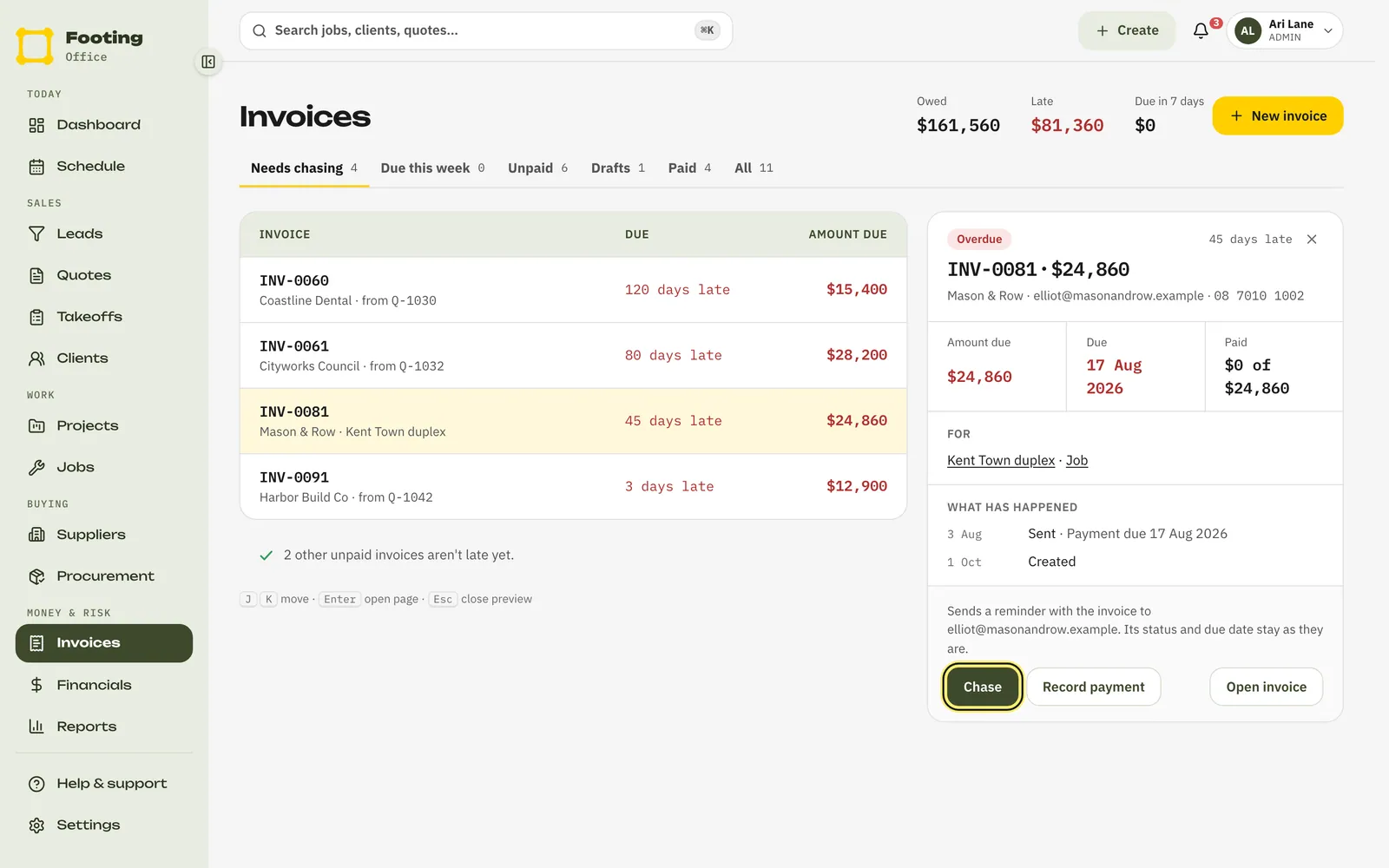
Go to Invoices. The top shows what you’re Owed, how much is Late and what’s Due in 7 days. The page opens on Needs chasing, with the longest overdue at the top.
- Needs chasing — past the due date and not paid.
- Due this week — due in the next 7 days.
- Unpaid — everything sent and not fully paid.
- Drafts, Paid and All — what they say.
Click an invoice to see its next step: Send for a draft, Remind when it’s due within a week, and Chase when it’s late.
Chase a client
Go to Invoices and click the invoice.
On a wide screen it opens beside the list.
Click Chase (or Remind), then Send reminder to confirm.
Footing emails your client a reminder with the invoice. Its status and due date stay as they are.
What your client sees
A reminder from your business: “Reminder: invoice INV-0081 from [your business]”. It says when the invoice was due, or is due if you clicked Remind, with the amount still owing and the PDF. If you take card payments, it has the Pay invoice button, set to what’s still owing.
What Footing does on its own
- The day after the due date, Footing marks the invoice Overdue.
- It reminds your office 1, 7 and 14 days after the due date. “Invoice INV-0081 is overdue” lands in your notifications under Needs you. It’s emailed to admin and office users too, unless you’ve turned those emails off.
- It never emails your client on its own. You choose when to chase.
To change those days, go to Settings → Notifications. Under Chase overdue invoices on (days after due), type a number in Days and click Add, or click the x next to a day to take it off. Then click Save reminder timing. See How notifications work.
Record a payment
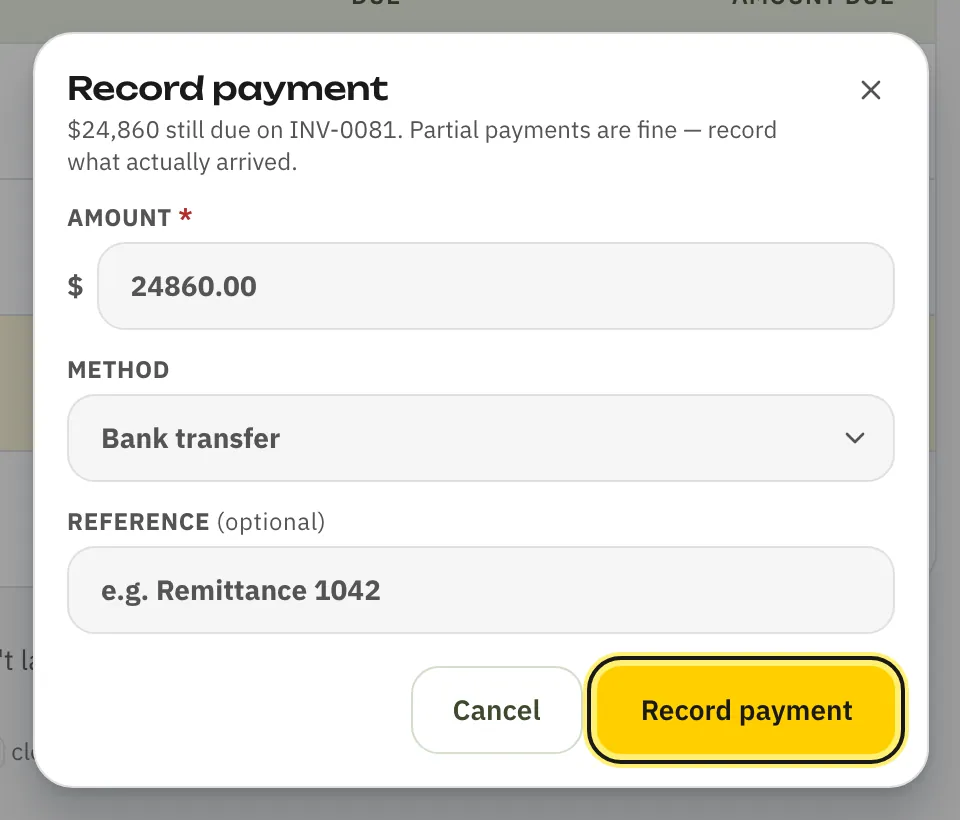
Open the invoice and click Record payment.
On a wide screen, it’s also beside the list when you click the invoice.
Check the amount, pick the method, and click Record payment.
Amount starts at what’s still owing. Part payments are fine: type what actually arrived. Method is Bank transfer, Card or Cash. Reference is optional, like the remittance number.
- Paid in full, the invoice shows Paid. Part paid, it shows Partially paid and stays on the list until the rest comes in.
- Mark paid on the invoice records the rest as a bank transfer, paid today. A box says how much before it does.
- Card payments through the Pay invoice button are recorded for you.
- Using Xero? Payments you record go to Xero, and payments recorded in Xero come back. See Connect Xero.
Give the chasing to someone in the office
Go to Clients and click Follow up overdue. Footing lists every overdue invoice. Pick who works through them under Who follows up, then click Add reminders (it counts them, like Add 4 reminders). Each one becomes a reminder under Needs you in their notifications.
For one client, click Follow up on their row, or open the client and pick Follow up overdue invoices from the ⋯ (more actions) menu.
How to ask for money politely and what to do if they still don’t pay: Chasing late payments.
Related guides
Still stuck? Email support@folkware.com.au and tell us what you were trying to do.