Footing tells you straight away when something needs you. Everything else waits for one email a day.
Your notifications
Click the bell at the top of any page.
On a computer, your notifications open in a panel. On a phone, they open as a page. The number on the bell counts only what needs you.
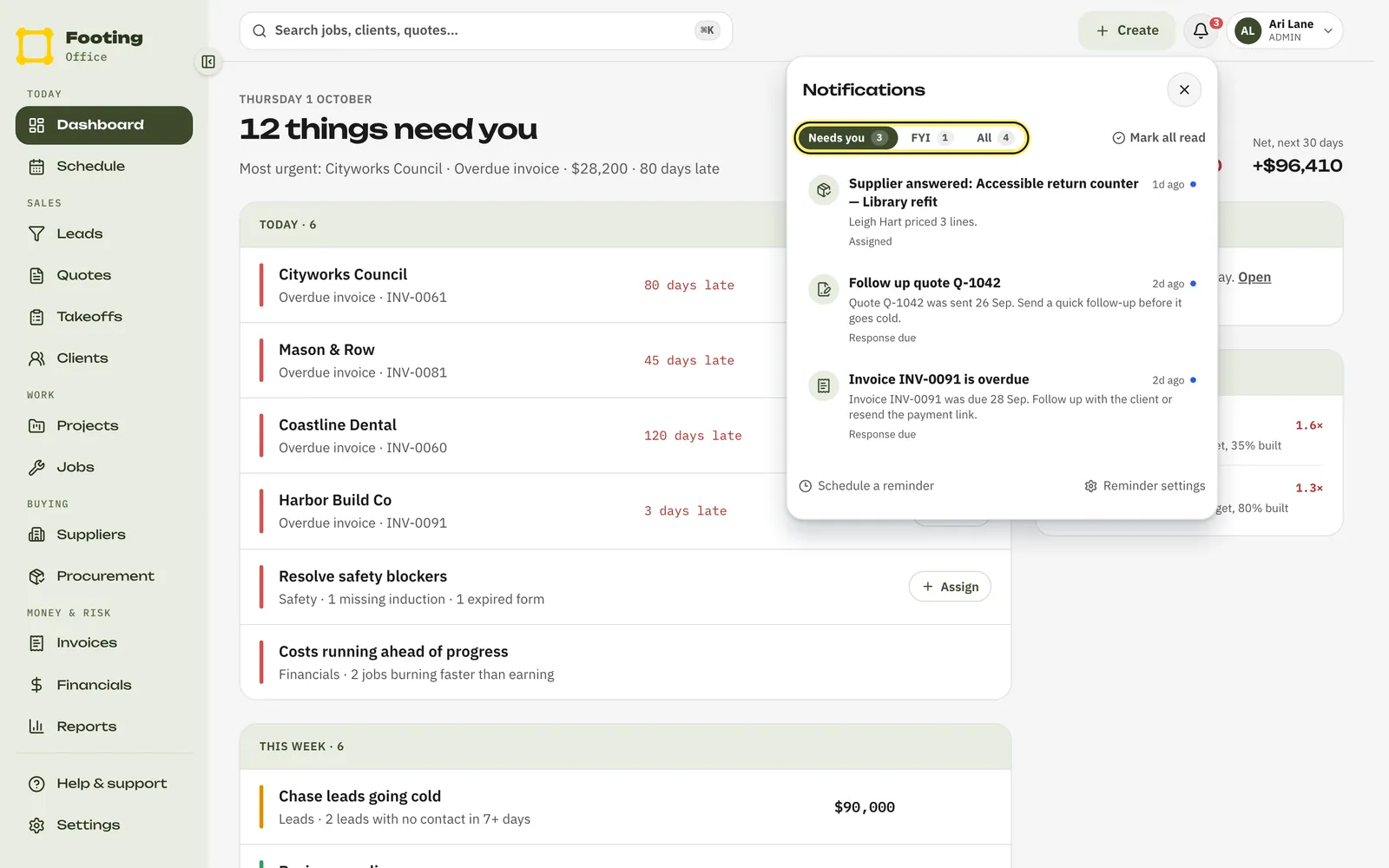
Pick a tab.
- Needs you — something is waiting on someone in your business.
- FYI — updates you don’t have to act on.
- All — everything, except what you’ve dismissed.
Click a notification to open what it’s about.
It opens the invoice, quote or job, and marks the notification read. A small label says why you got it, like Assigned or Response due.
Each unread notification has three buttons. On a computer, hover over it to see them.
- Snooze — not now. It stays in your list, and Footing sends it to you again tomorrow.
- Read — done with it. It leaves Needs you but stays under All.
- Dismiss — clear it away. It’s gone from every tab.
What needs you
Footing decides this for you. You don’t set it up. These need you:
- An invoice that’s overdue.
- A quote or lead that’s due a follow-up.
- A job that’s about to start.
- An RFI, defect or closeout item that’s overdue.
- A client accepting a quote, or approving a variation.
- A supplier sending prices for an RFQ.
- Insurance or a licence that has run out.
- A reminder someone schedules, unless its type is Other.
FYI is the rest: insurance and licences that will run out soon, emails that arrive on a job or project, reminders with the type Other, and messages from Footing itself.
Who gets emails
- Only admin and office users get notification emails and pushes. Your crew and subbies don’t.
- Each Needs you item is emailed as soon as it lands, one at a time. It goes to the person it’s for, or to the whole office team when it’s for no one in particular. The email has an Open Footing button.
- Everything else goes in one digest email a day, called “Footing digest”. If there’s nothing new, there’s no email.
- Push notifications only work in the Footing phone app, not in a browser. Only Needs you items buzz your phone. To turn them on, open notifications in the app and tap Turn on notifications. Crew and subbies don’t see that button, as pushes don’t go to them.
Change what gets sent
Go to Settings, then Notifications.
These settings are for the whole office team, not just you. Only admin and office users can change them.
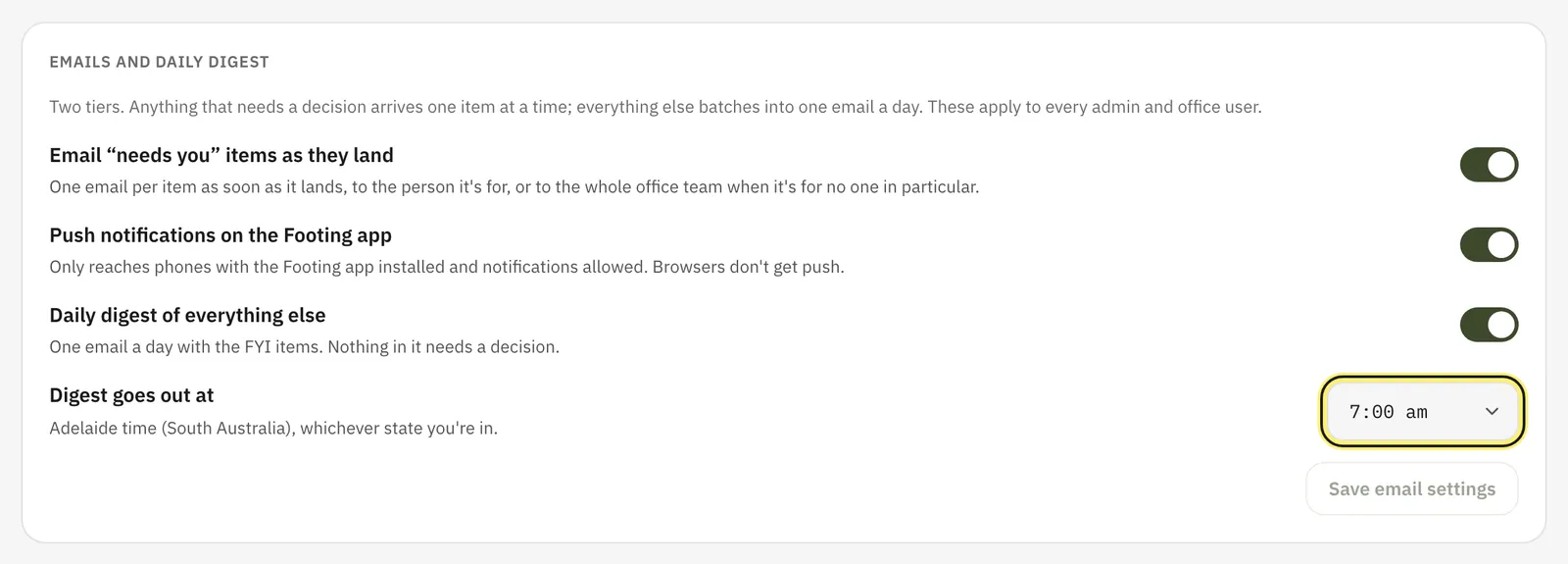
Turn the switches on or off, then click Save email settings.
- Email “needs you” items as they land
- Push notifications on the Footing app
- Daily digest of everything else
- Digest goes out at — the hour the digest is sent. It starts at 7:00 am. It’s always Adelaide time, whichever state you’re in.
Change when reminders come
Lower down the same page, Reminder timing sets when Footing reminds your team. Under Reminders to your team:
- Follow up quotes after (days) — starts at 3 and 7.
- Follow up quiet leads after (days without contact) — starts at 3, 7 and 14.
- Chase overdue invoices on (days after due) — starts at 1, 7 and 14.
- Remind about a job (hours before start) — starts at 24.
To add a day, type it in Days and click Add. To take one off, click the x next to it. Then click Save reminder timing.
See Chase overdue invoices and Follow up a quote for what to do when a reminder lands.
Related guides
Still stuck? Email support@folkware.com.au and tell us what you were trying to do.