Most quotes need a nudge. Footing shows you which ones are waiting, reminds you when to chase, and lets you record the answer however it came in.
See which quotes need you
Go to Quotes. The tabs along the top sort your quotes:
- Needs a move — drafts to send, sent quotes going quiet or about to run out, and won work not invoiced yet. Start here.
- With clients — everything sent and waiting on an answer.
- Drafts, Won, Lost / expired and All.
Each quote shows when it was sent and when it runs out. The date turns amber inside a week and red inside two days. Once the date has passed it says Lapsed. A won quote that hasn’t been billed yet says Not invoiced.
Send it to them again
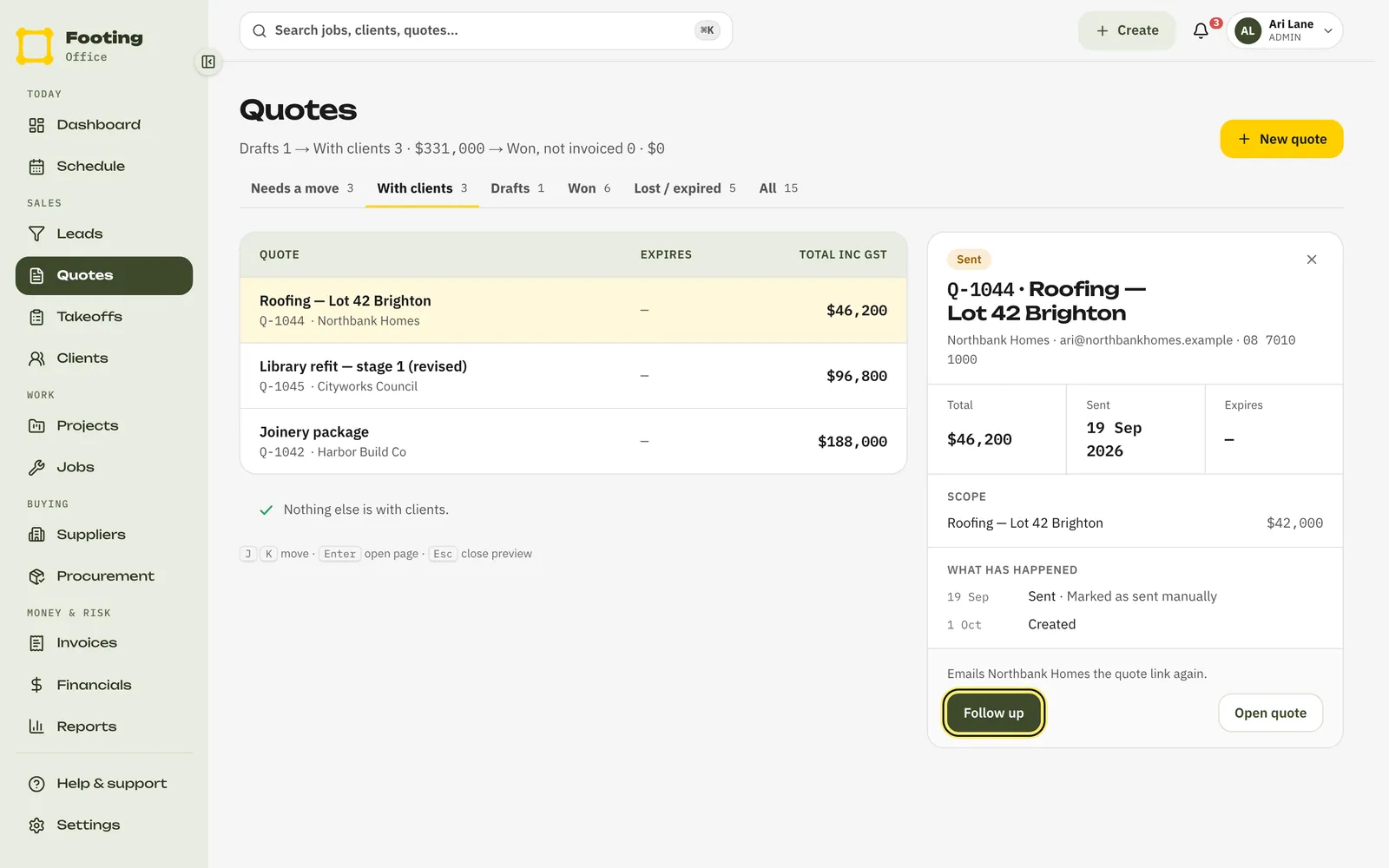
Click the quote, then Follow up.
On a wide screen the quote opens on the right, with the button at the bottom.
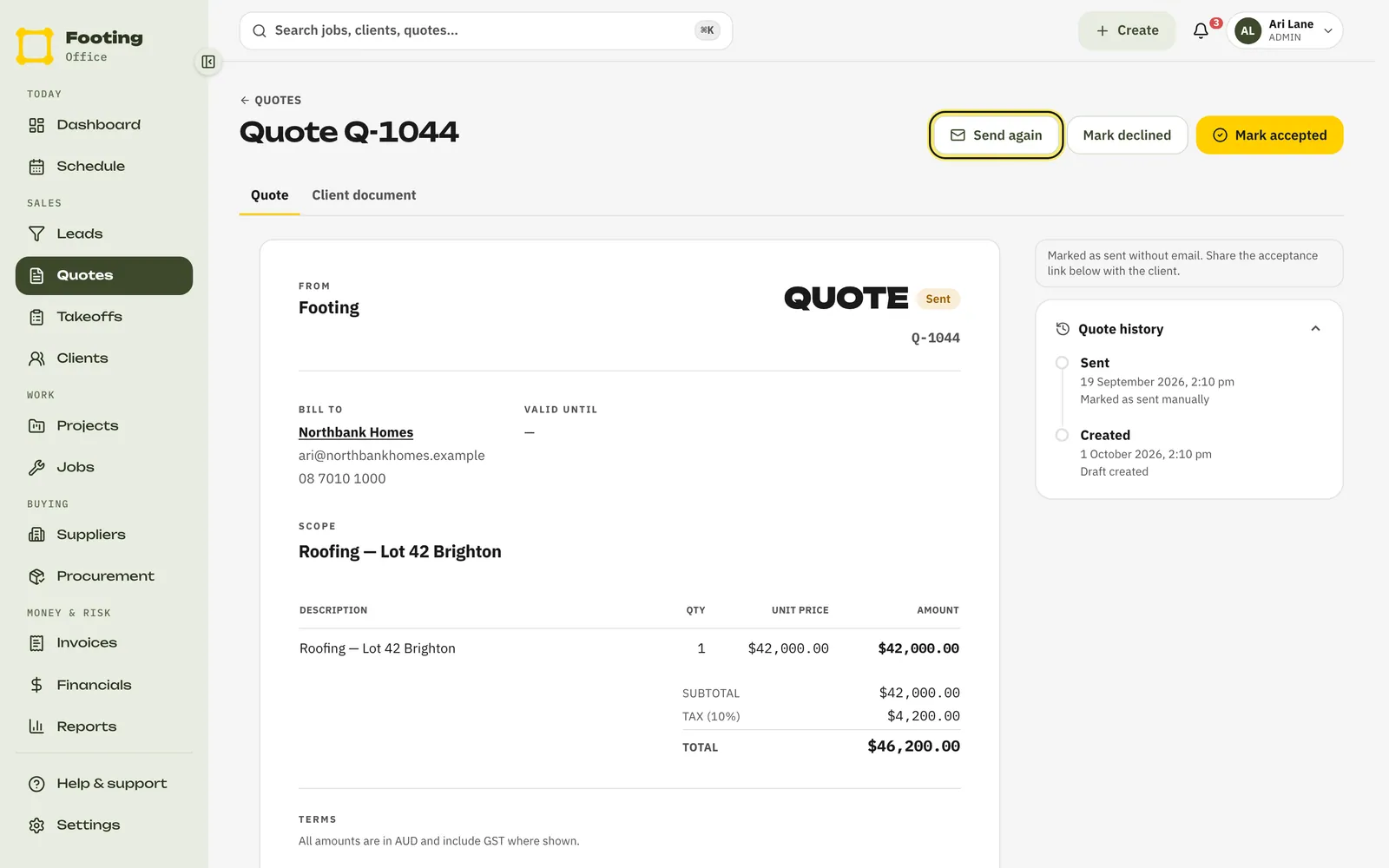
Or open the quote and click Send again.
Check Send to, then click Send email.
It’s filled in with whoever the quote went to last. The quote keeps its status and sent date.
What they see: the same quote email again, with the PDF and the Review & accept quote button.
Reminders to chase
- Footing reminds your team 3 and 7 days after a quote goes out. The reminder says Follow up quote and the quote number, and it shows with your notifications.
- Only your team gets these. Footing never chases the client by itself. You choose when to follow up.
- The reminders stop once the quote is accepted or declined.
- To change the days, go to Settings, then Notifications, and change Follow up quotes after (days).
They gave you an answer by phone
They said yes:
Open the quote and click Mark accepted.
Type who said yes under Accepted by.
Click Mark accepted.
Nothing is sent to the client.
They said no: open the quote, click Mark declined, then Mark declined again to confirm. They can no longer accept it. Nothing is sent to them. If the job is still on later, send a new quote.
After a yes
- The quote shows who accepted it and when. If they signed online, click Open signed PDF to see it.
- Click Create invoice from quote. The client, job and lines carry across to a draft invoice. Nothing goes to the client until you send it. See Create and send an invoice.
- On the Quotes page, click a won quote marked Not invoiced: its Create invoice button does the same thing.
- Quote on a lead? Win the lead first. That makes the client and project and moves the quote across, ready to invoice. See Track leads and win the job.
Related guides
Still stuck? Email support@folkware.com.au and tell us what you were trying to do.