Price the work in Footing and email it to your client. They read it, sign it on their phone and accept it online. You see it the moment they do.
Before you start
Every quote is for one of two things:
- An open lead — new work you haven’t won yet. See Track leads and win the job.
- A job — work for a client you already have. The client and site come with it.
The quote is emailed to the client’s email, or the lead’s. Check it’s there.
Build the quote
Click Create at the top, then Quote.
Or go to Quotes and click New quote. From a lead, click Add quote. From a client’s page, click Create quote.
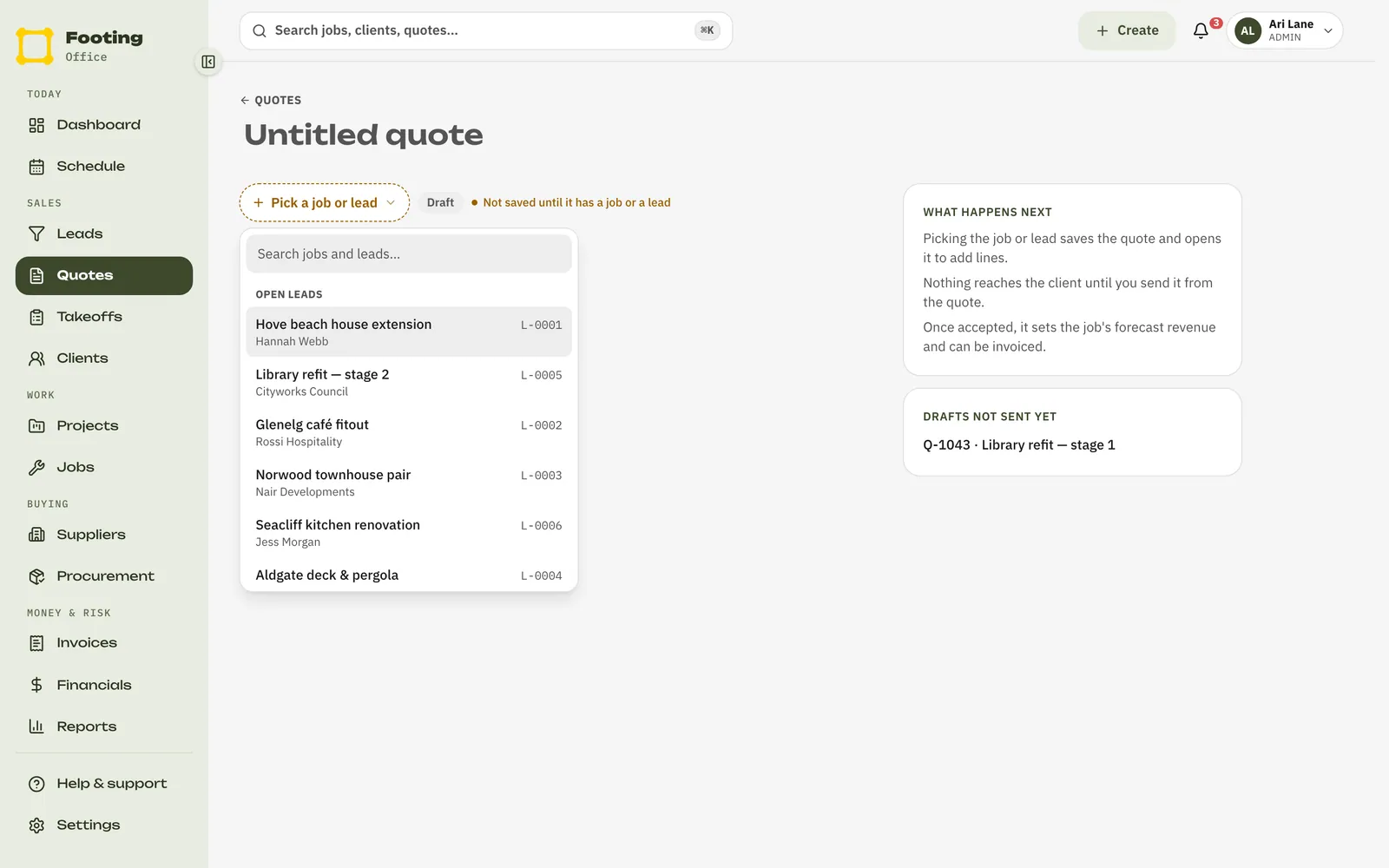
Click Pick a job or lead and choose what it’s for.
Pick from Open leads or Jobs. New work with no lead yet? Type a name and pick New lead. Footing saves the quote and opens it. If you started from a lead or a job, this step is done for you.
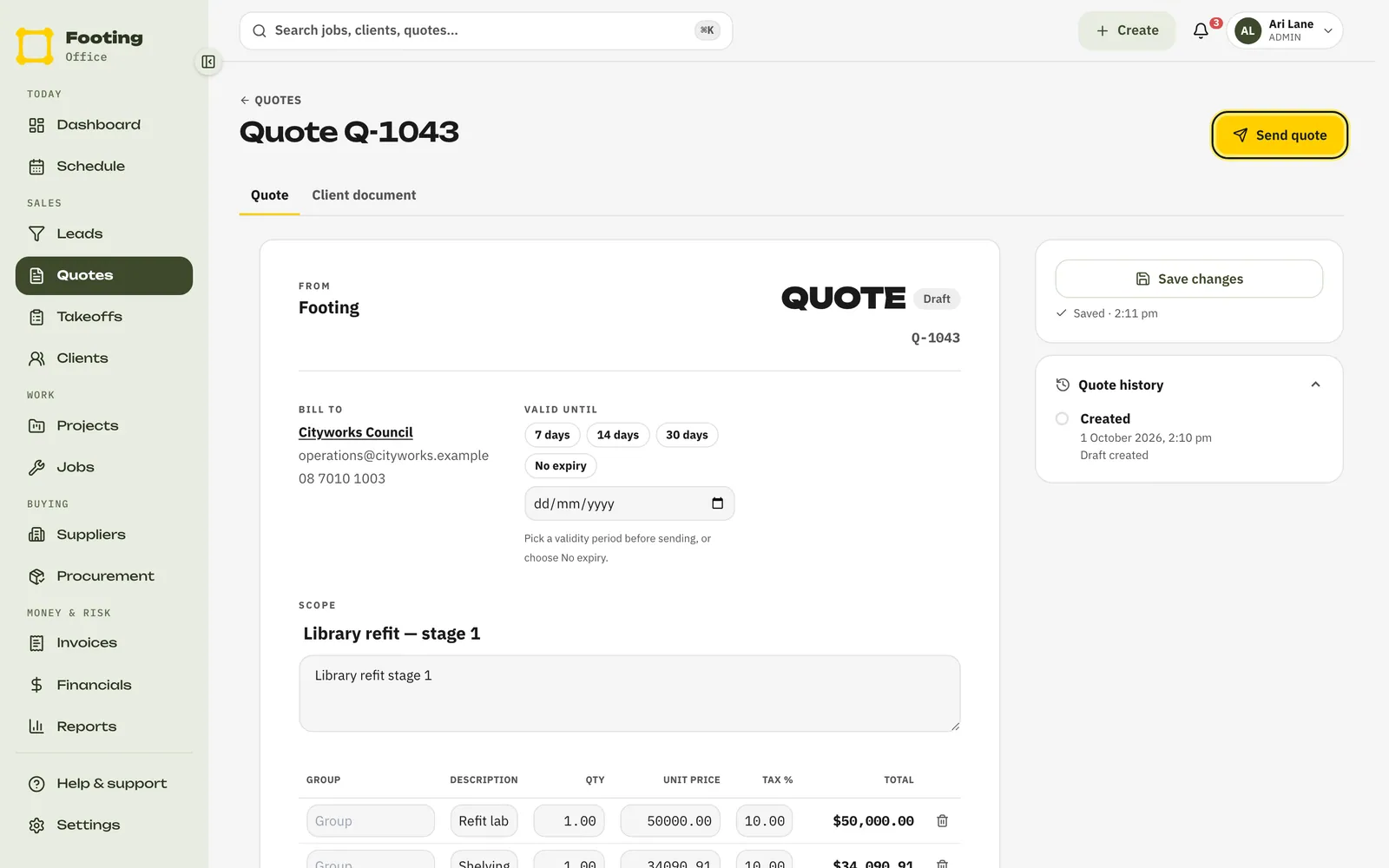
Click Add line item for each line.
Fill in the Description, Qty and Unit price. Unit prices are before GST. Tax % starts at 10 for GST, and Footing adds it on to get the Total. Use Group to sort lines under headings, like Preliminaries. Your changes save by themselves.
Under Valid until, choose how long the price holds.
Pick 7 days, 14 days, 30 days, a date, or No expiry. You can’t send the quote until you choose one.
Check the Client document tab.
This is the document your client sees and signs. Change the layout here if you like.
Send it
Click Send quote.
Check Send to.
It’s filled in with the client’s email, or the lead’s. Add your own Email subject and Email message if you like. Leave Attach the PDF ticked to attach a PDF copy.
Click Send by email.
Rather send it yourself? Click Mark as sent without email instead. Then use Copy link under Client acceptance link and text the link to them.
What your client sees
An email about the quote, sent through Footing.
The subject reads “Quote Q-1043 from [your business] — [quote title]”, unless you wrote your own. Your logo or business name is at the top. It shows the total with GST and how long the quote is valid, or your own message if you wrote one. The PDF is attached if you left that ticked. If you’ve added a business email in Business details, it tells them to contact you there.
They tap Review & accept quote.
The quote opens in their browser. There’s no account or login. They see everything you’re quoting and the total.
They sign and accept.
They type their Name (and Email if they like), draw their signature with a finger or mouse, and tick I agree to accept this quote. Then they tap Accept quote.
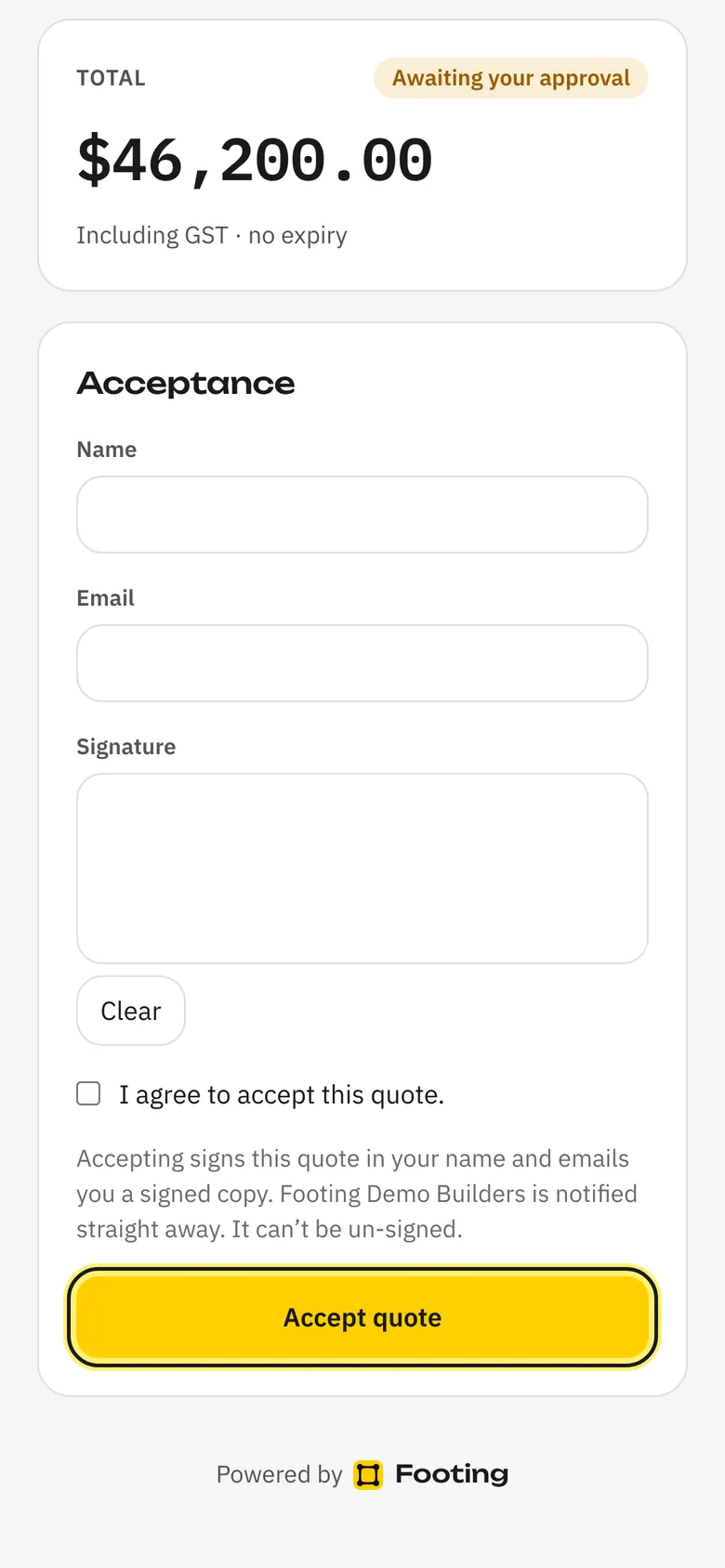
They get a signed copy.
The page shows Open signed PDF, and Footing emails them the signed copy too. Footing lets your office know it’s been accepted.
After you've sent it
- The quote shows as Sent and sits under With clients on the Quotes page.
- Footing reminds your team to follow it up 3 and 7 days after it went out. The client isn’t emailed. See Follow up a quote.
- When they accept, the quote shows who accepted it and when, with Open signed PDF. Then click Create invoice from quote.
- Quote on a lead? Win the lead first. That makes the client and project, and moves the quote across ready to invoice.
Related guides
Still stuck? Email support@folkware.com.au and tell us what you were trying to do.