A lead is an enquiry you haven’t won yet. Put it on the board when the phone rings, move it along as you go, and win it when they say yes. Winning makes the client, the site and the project for you.
Add a lead
Go to Leads and click New lead.
Or click Create at the top, then Lead.
Fill in What’s the work?
That’s the only box you must fill. Add whatever else you caught on the phone: Estimated value, Source, Contact name, Company, Email, Phone, Suburb and State.
Click Create lead.
It goes into the first stage. Nothing is sent to the client.
Move it along
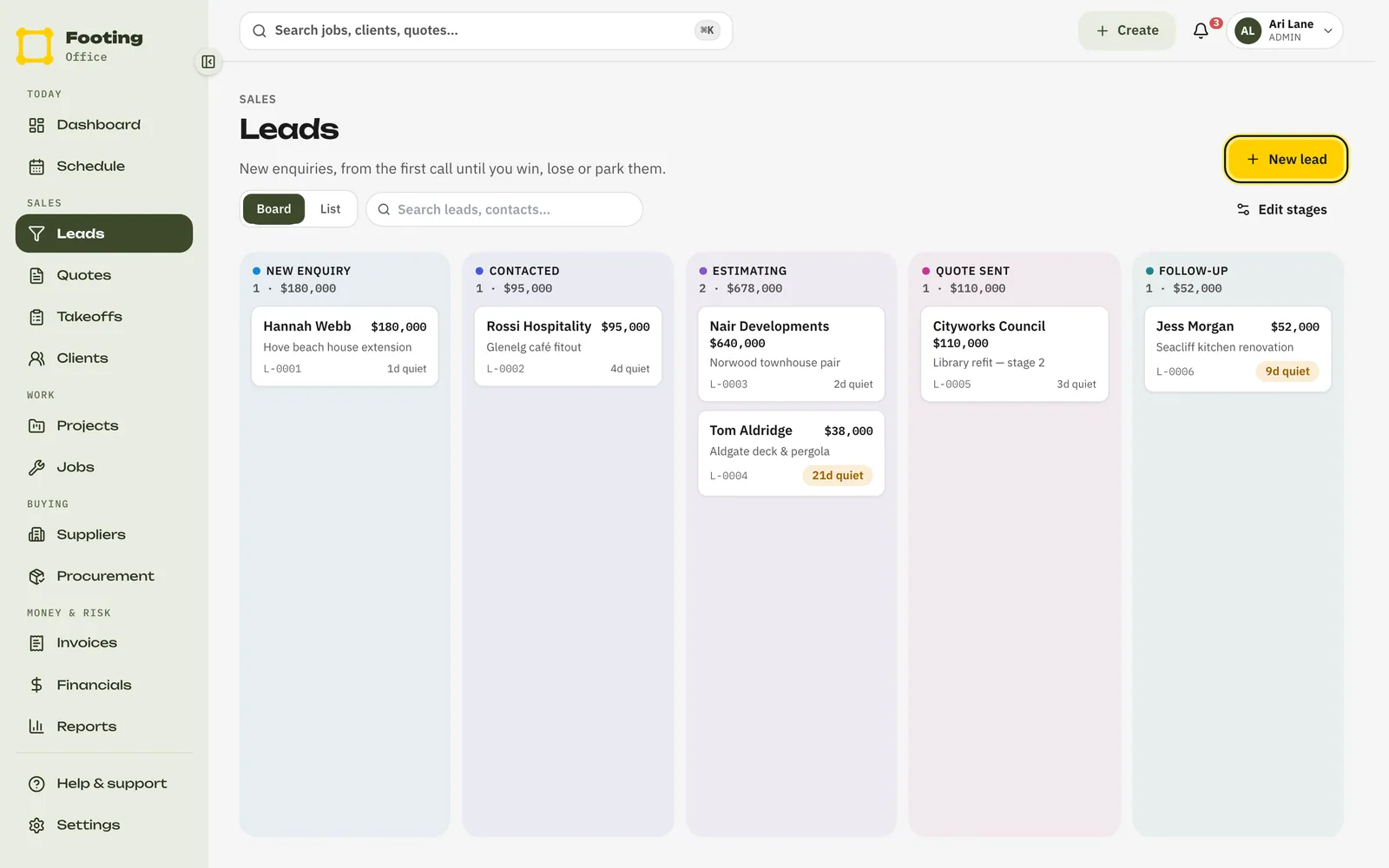
Leads opens on the Board, with one column for each stage, like New Enquiry, Contacted and Quote Sent. Your stages may be different. An admin can change them with Edit stages.
- On a computer, drag a card into the next column.
- Or open the lead and click Move to the next stage, like Move to Contacted. You can also click any numbered step to jump there, back or forward. On a phone, use Jump to.
- Click List to see leads as a list. The tabs sort them: Open, Going cold, Follow-up due, Won, Lost and Parked.
Email them from the lead
If the lead has an email, its page has a button with the contact’s name on it, like Email Priya Nair.
Click that button.
Check the Subject and type your Message.
Click Send & file.
Footing sends it straight away and keeps a copy on the lead’s Activity tab.
What they see: an email with your subject and message. Your logo or business name is at the top, and it’s sent through Footing. If you’ve added a business email in Business details, the email tells them to contact you there.
Price it
On the lead’s page, click Add quote. The quote stays with the lead until you win it. See Create and send a quote.
Win it
On the lead’s page, under Close this lead, click Won.
If the lead is already in the last stage, the yellow button says Mark won. It does the same thing.
Check the names and fill in the site address.
Project name and Client name come from the lead. Change them if you need to. Site address, Suburb, State and Postcode all have to be filled in.
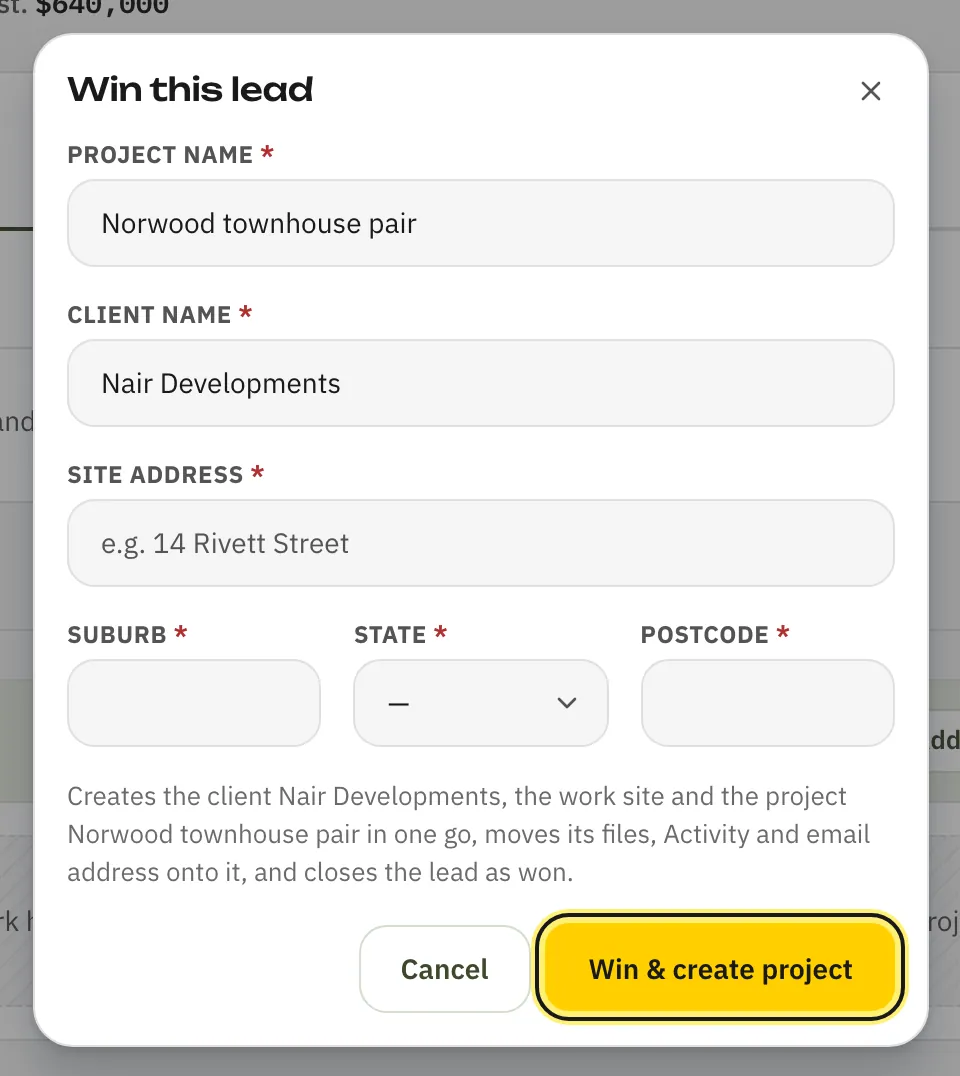
Click Win & create project.
In one go, Footing:
- makes the client, with the lead’s email and phone
- makes the work site and the project
- moves the lead’s quotes, files and Activity onto the project
- closes the lead as won.
Click Open project to carry on. Nothing is sent to the client when you win a lead.
Lost it, or it's on hold
- Lost: click Lost, say why under Why?, then click Mark lost. Price, went with another builder, no reply — whatever it was.
- On hold: click Park. It means “not now”, not “no”. Set a Re-engage on date and a Note if you like, then click Park it. Footing reminds you on that date.
Related guides
Still stuck? Email support@folkware.com.au and tell us what you were trying to do.