A client is who you quote, schedule and bill. Add them once, then add the sites you work at for them. Jobs, quotes and invoices all hang off the client and the site.
Add a client
Click Create at the top, then Client.
Or go to Clients and click New client.
Type the client's name.
Pick Company or Person. Footing saves the client as soon as you press Enter or move to the next box.
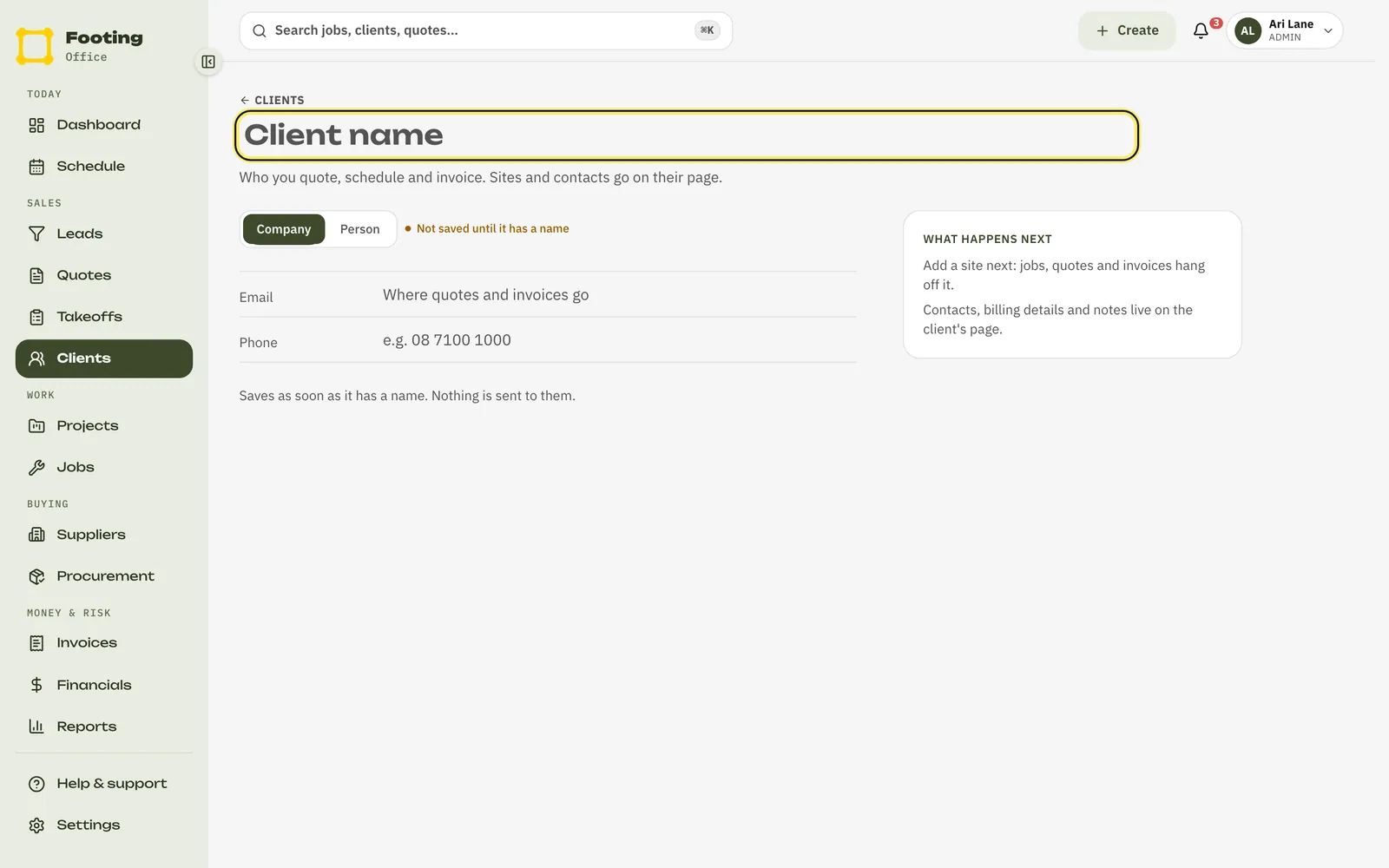
Add their email and phone.
The Email is where their quotes and invoices go, so get it right. Each box saves when you leave it.
Click Open the client.
Once it’s saved, the page also offers Schedule a job, New quote and New project.
Add a work site
A work site is the address where you do the work. One client can have lots of them.
On the client’s page, find Work sites and click Add work site.
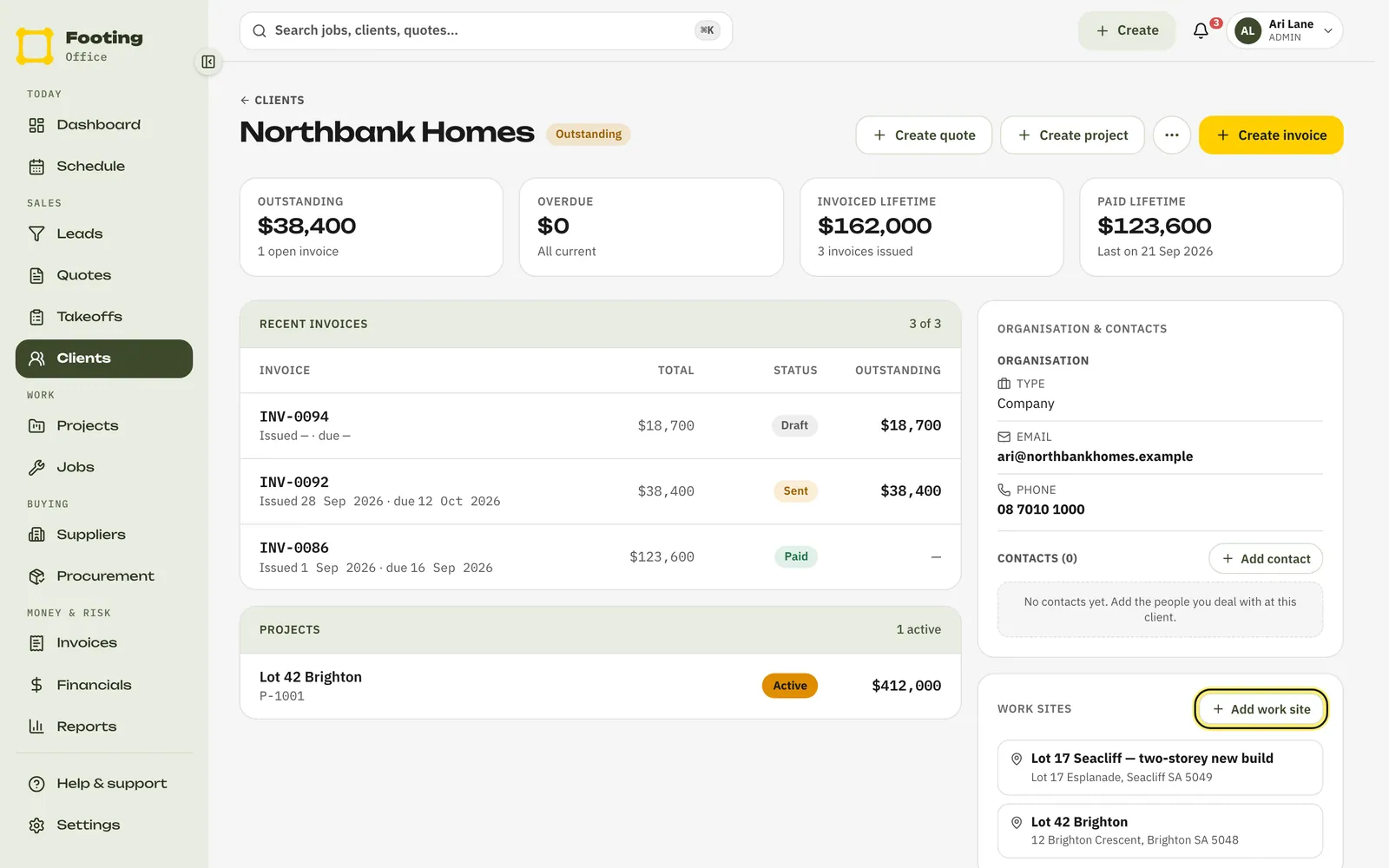
Fill in the address.
Give it a Work site name your crew will know, like “Lot 42 Brighton“. Then add the Street address, Suburb, State and a 4-digit Postcode.
Click Add work site.
Add the people you deal with
Under Organisation & contacts, click Add contact.
Type their name, and their email and phone if you have them.
Role (optional) is handy for a big client, like “Site supervisor“.
Click Add contact.
Change their details or add an ABN
At the top of the client’s page, click the ⋯ button, then Edit details.
Change the Name, Email, Phone or ABN, then click Save details.
What you can do from a client's page
- Create quote — price work for them. See Create and send a quote.
- Create project — group a build’s jobs, quotes and invoices.
- Create invoice — bill them. See Create and send an invoice.
- The page also shows what they owe, their recent invoices and their projects.
Still chasing the work? Start with a lead instead: track leads and win the job. Winning a lead makes the client and site for you.
Related guides
Still stuck? Email support@folkware.com.au and tell us what you were trying to do.