Connect Xero once, and Footing sends your clients, invoices, quotes, payments and approved supplier bills across for you. Payments you record in Xero come back to Footing too.
Before you start
- You need to be an admin or office user in Footing.
- Have your Xero login handy.
- Know which Xero bank account your customer payments go into. Footing asks for it after you connect.
Connect Xero
Go to Settings, then Xero.
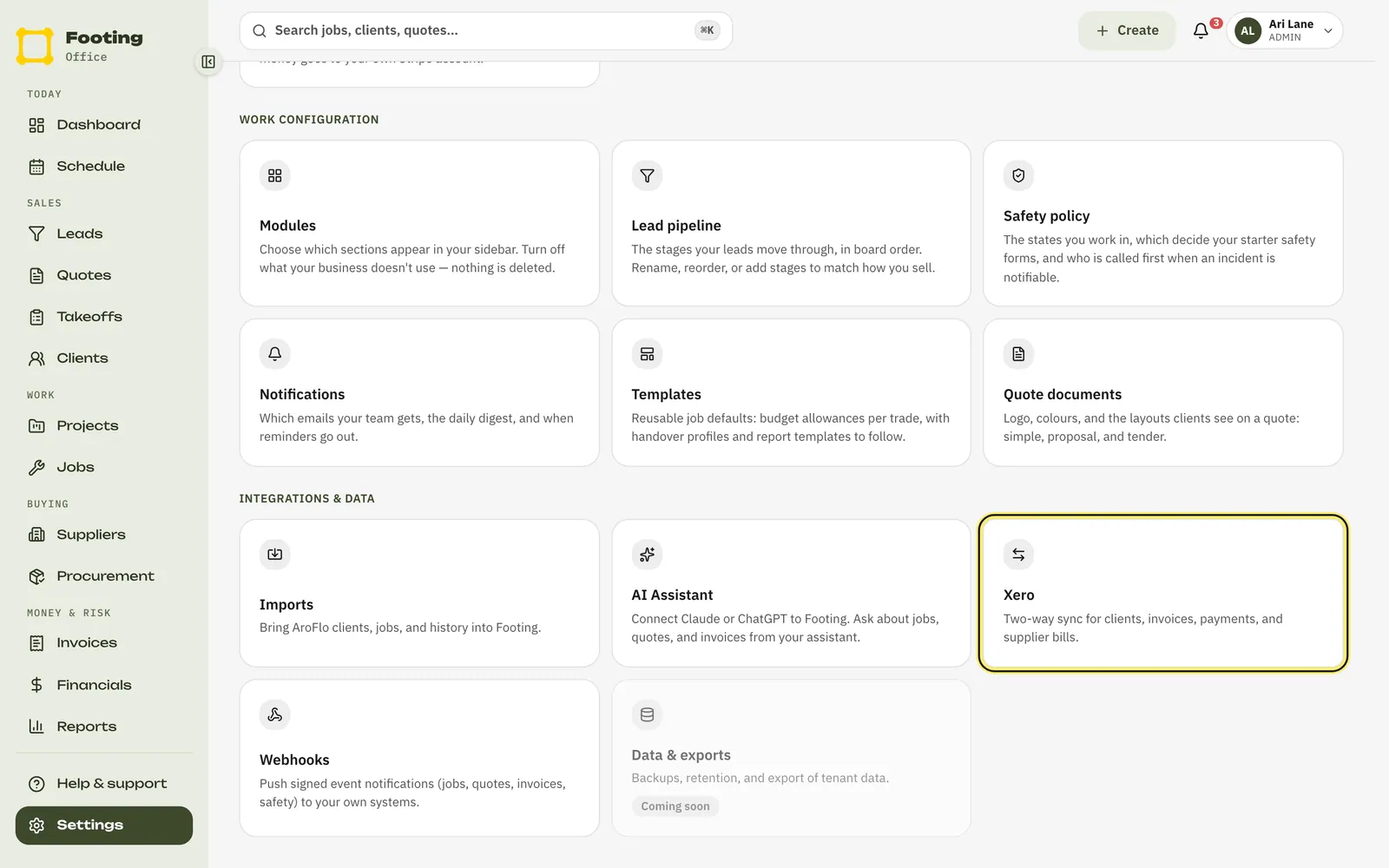
Click Connect Xero.
Xero opens. Sign in and let Footing connect to your organisation.
Come back to Footing.
Xero sends you straight back. If you gave access to more than one organisation, Footing asks Which organisation should Footing use? Pick yours and click Use this organisation. Nothing is sent until you do.
Under Where things go in Xero, pick your accounts.
- Sales — where your invoice lines go. Leave it empty to use Xero’s default (200).
- Supplier bills — where approved bills are coded. Leave it empty to use Xero’s default (300).
- Customer payments — the bank account client payments land in. This one is required.
- Card payments — optional. Only if you take card payments and use a clearing account in Xero.
Click Save accounts.
New invoices and payments use these accounts from now on.
What goes across
- Invoices, quotes and clients → Xero. When you send them, with your numbers and GST.
- Payments, both ways. Record a payment in Footing or in Xero, and it shows in both. Payments recorded in Xero reach Footing within 15 minutes.
- Supplier bills → Xero. Once they’re approved, coded to your Supplier bills account.
Keep an eye on sync health
Sync health on the same page shows how many records are In Xero, what Needs attention, and when payments were last checked.
- Didn’t reach Xero lists anything that failed, with the reason. Often it’s an account code. Fix it, then click Retry, or Retry all if there are a few.
- Needs a look lists records where Xero and Footing disagree. Fix it in one of them, then click Mark resolved. If they still disagree, it comes back.
If something goes wrong
- Reconnect needed. Xero stopped accepting the connection. This happens if it goes unused for 60 days, or someone removes access in Xero. Click Reconnect Xero. Anything that queued up sends once you’re back.
- Not available on this server yet. Xero isn’t switched on for your Footing. Contact Footing support.
- Want to stop syncing? Click Disconnect Xero at the bottom of the page, then Disconnect. Everything already in Xero stays there. You can reconnect any time.
Taking card payments too? See Take card payments with Stripe.
Related guides
Still stuck? Email support@folkware.com.au and tell us what you were trying to do.