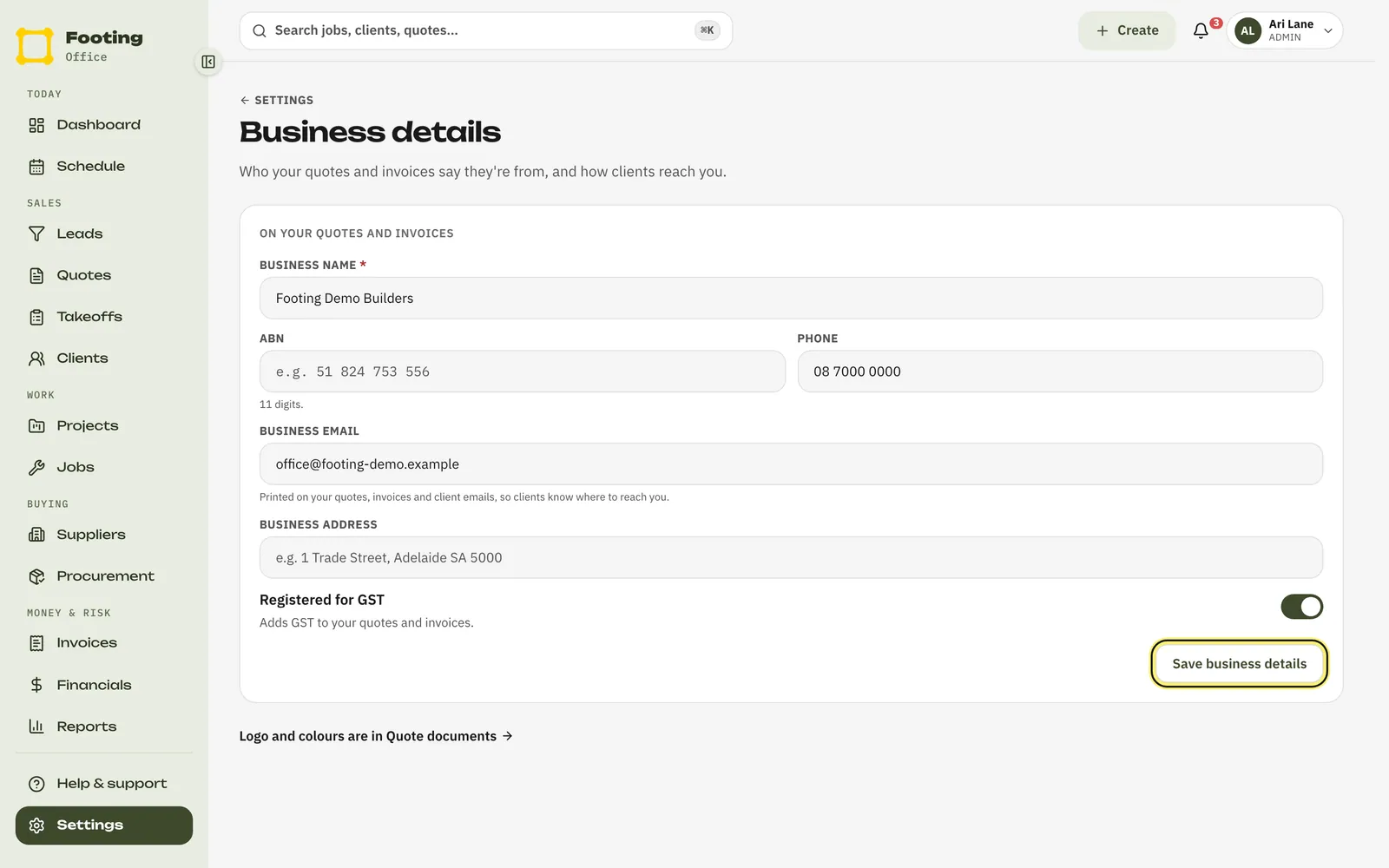
Change the business name, ABN, email, phone, address and GST setting that print on your quotes and invoices.
Before you start
Only admins can see and change business details. If you’re not an admin, ask one to fix it for you.
Change your details
Go to Settings, then Business details.
Change what you need.
- Business name — who your quotes and invoices are from. You must have one.
- ABN — 11 digits. Footing checks it’s a real ABN before it saves.
- Phone and Business address — how clients reach you.
- Business email — printed on your quotes and invoices, and in the emails Footing sends your clients.
- Registered for GST — turn it on to add GST to your quotes and invoices.
Click Save business details.
The button only works once you’ve changed something. You’ll see Business details saved when it’s done.
What your clients see
The next quote or invoice you send shows your new details. Emails you send clients through Footing show your business name and business email, so they know who it’s from and where to reach you.
Logo and colours
Your logo and colours aren’t here. They’re in Settings → Quote documents. See Set up your business in Footing.
Related guides
Still stuck? Email support@folkware.com.au and tell us what you were trying to do.