Get your SWMS, JSAs, inductions and toolbox talks signed. Give them to your team in Footing, or send a link that anyone can sign on their own phone.
Your forms
Go to Safety and click the Templates tab. These are the forms you can send. Filter by Inductions, SWMS, JSA or Custom. Click a form to see what workers see, then click Edit to change it or Assign to send it. To make your own, click New template.
Give a form to your team
This is for people who have a Footing login. Nobody is emailed.
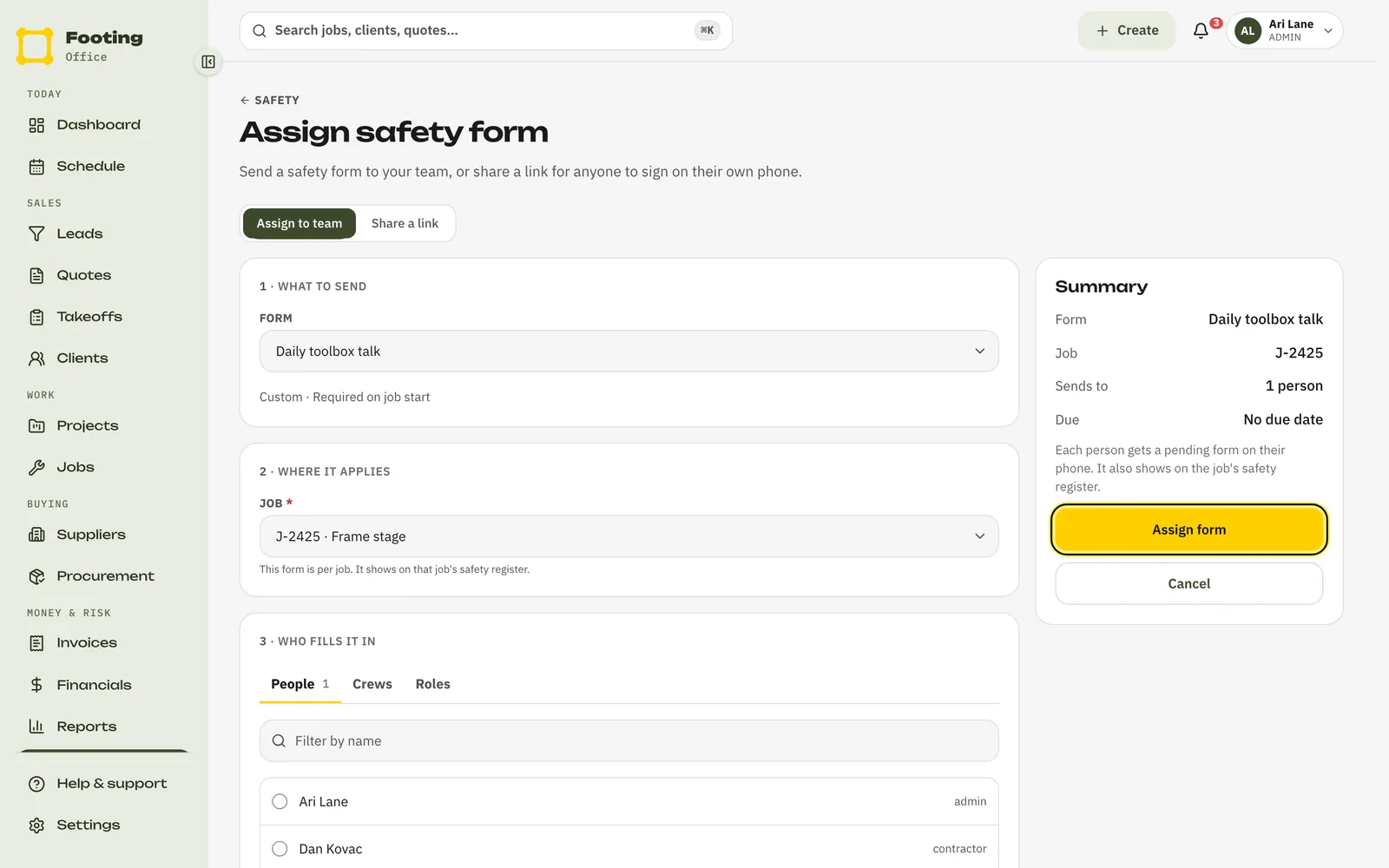
Go to Safety and click Assign form.
Or open a job’s Safety tab and click Assign safety form. The job is then filled in for you.
Leave Assign to team selected, and pick the Form.
Pick the Job it’s for.
Forms set up for the whole business don’t ask for a job.
Choose who fills it in.
Tick names under People, whole Crews, or Roles like Technicians or Contractors. Mix them if you like. Each person gets one form, even if they’re picked twice.
Add a due date if you want one.
Under Due / expires. The form shows as overdue after that date.
Click Assign form.
What your team sees
No email or text. A form for a job waits on their Today screen: when they open that job, it’s under To sign before you start. They tap it, answer the questions and sign.
Send a link instead
Use this for people who aren’t in Footing: visitors, labour hire, a new subbie. They sign on their own phone. No login needed.
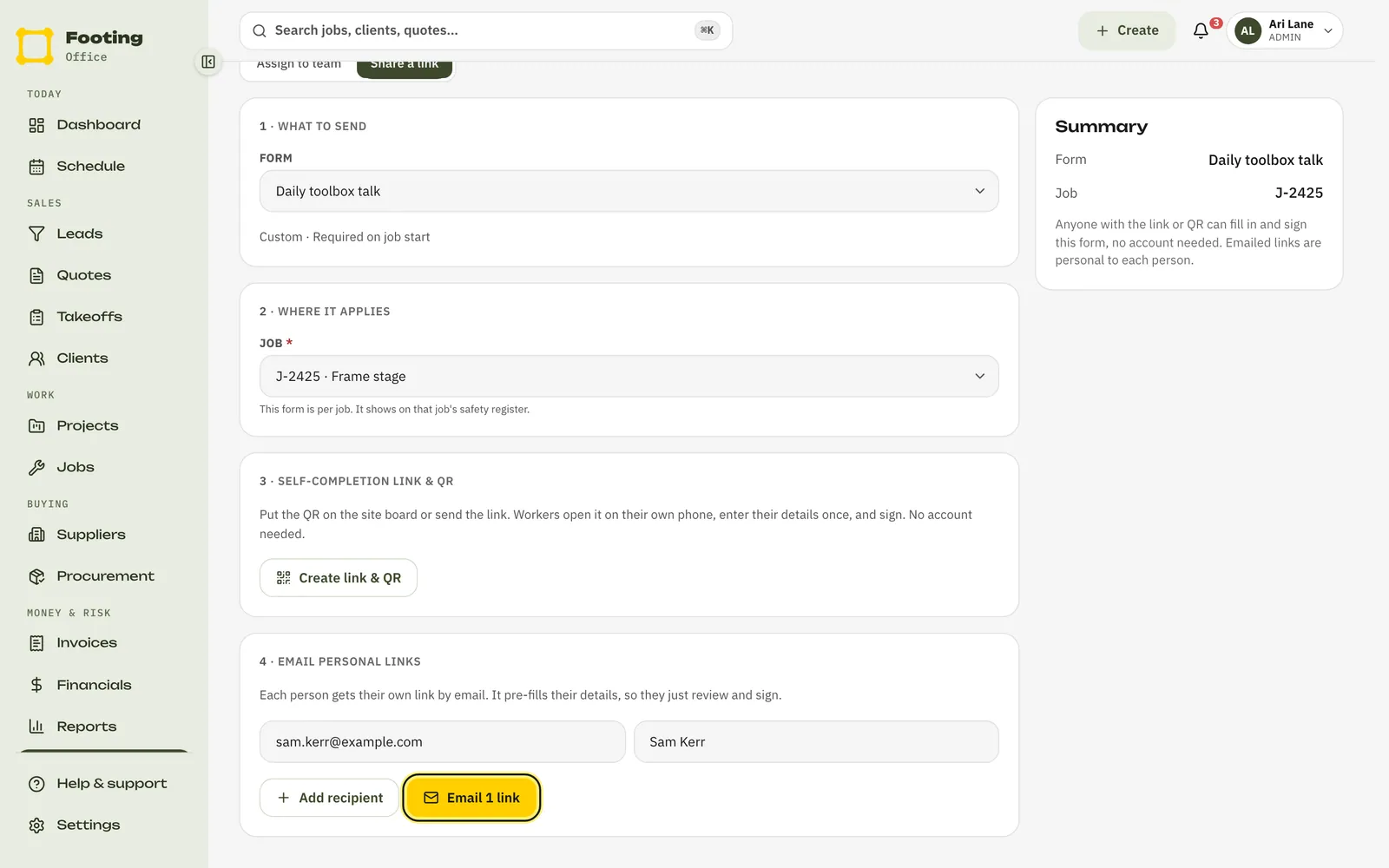
On Assign safety form, click Share a link.
Pick the Form, and the Job if it asks for one.
For one link anyone can use, click Create link & QR.
Footing shows a QR code and the link. Click Copy link to text it. The link runs out after 30 days. See Site inductions with a QR code.
To email each person their own link, use Email personal links.
Type their email, and their name if you like. Click Add recipient for more people. Then click the Email button, which counts the links, like Email 1 link. If an email can’t be sent, Footing shows the link so you can copy it.
What they see
An email, if you sent them a personal link.
The subject reads “[Form name] to complete for [your business]”. It names the job, if there is one, and has a Complete form button.
The form on their phone.
They read it and answer the questions. Then they fill in Your name and Your email, sign, tick that they’ve read and understood it, and tap Sign and submit. A personal link already has their details, and it can only be signed once.
Where signed forms show up
- Safety, Forms tab: Completion by form counts how many are done. Forms waiting lists the ones still to sign.
- A form for a job also shows on that job’s Safety tab, and on the project’s Safety tab.
- Attention tab: anything expired, missing or running out soon.
Related guides
Still stuck? Email support@folkware.com.au and tell us what you were trying to do.