Send a supplier a list of what you need. They type their prices into a simple page on their phone, with no login. Then you turn their price into a purchase order.
Before you start
Check the supplier has an email in Footing. It’s where the request goes. Without one, nothing is emailed and you pass the link on yourself.
Send the request
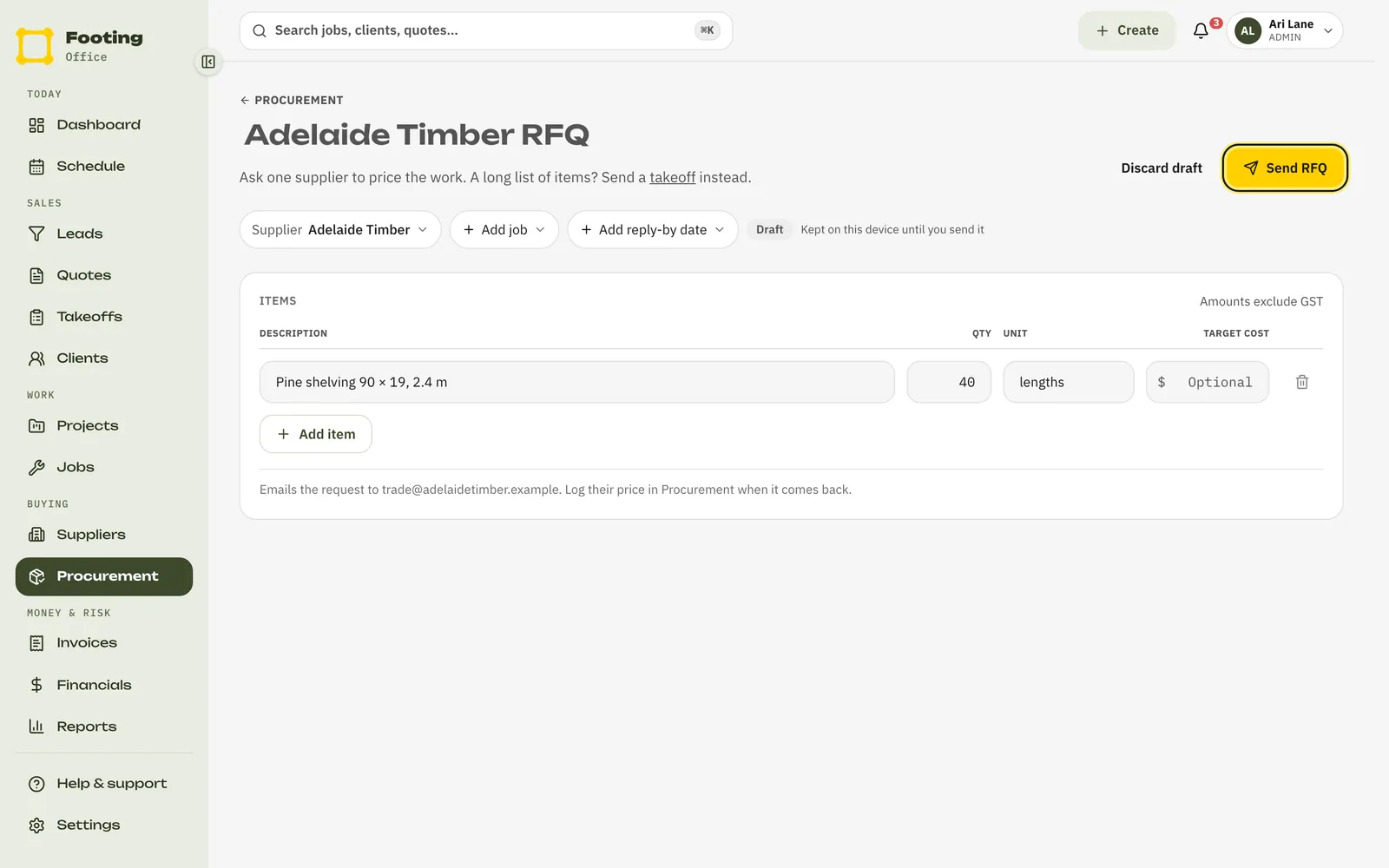
Go to Procurement and click New RFQ.
Or click Create at the top, then Supplier RFQ.
Click Supplier and pick who you’re asking.
The title fills in as their name and “RFQ”. Click it to give it a clearer name, like “Shelving timber — Library refit”. The supplier sees this title.
Add the job and a reply-by date if you like.
Add job says which job the costs are for. Add reply-by date tells the supplier when you need prices by.
Add what you need priced.
Fill in the Description, Qty and Unit, like each, m or set. Click Add item for more lines. Target cost is optional. It’s what you hope to pay, and it’s only for you. Amounts are ex GST.
Click Send RFQ.
Footing emails the request to the supplier and opens the RFQ.
What the supplier sees
An email asking for a price, sent through Footing.
The subject reads “Quote request from [your business]: [RFQ title]”. Your logo or business name is at the top. It says how many items there are and when you need prices by. It has an Enter your prices button.
They tap the button and price each item.
A page opens with each item and its quantity. There’s no account or login. Each item has a price box, like Your price per m (ex GST), and Your total (ex GST) adds up as they go. They add Your name, and anything else under Anything to add?, like lead times or exclusions.
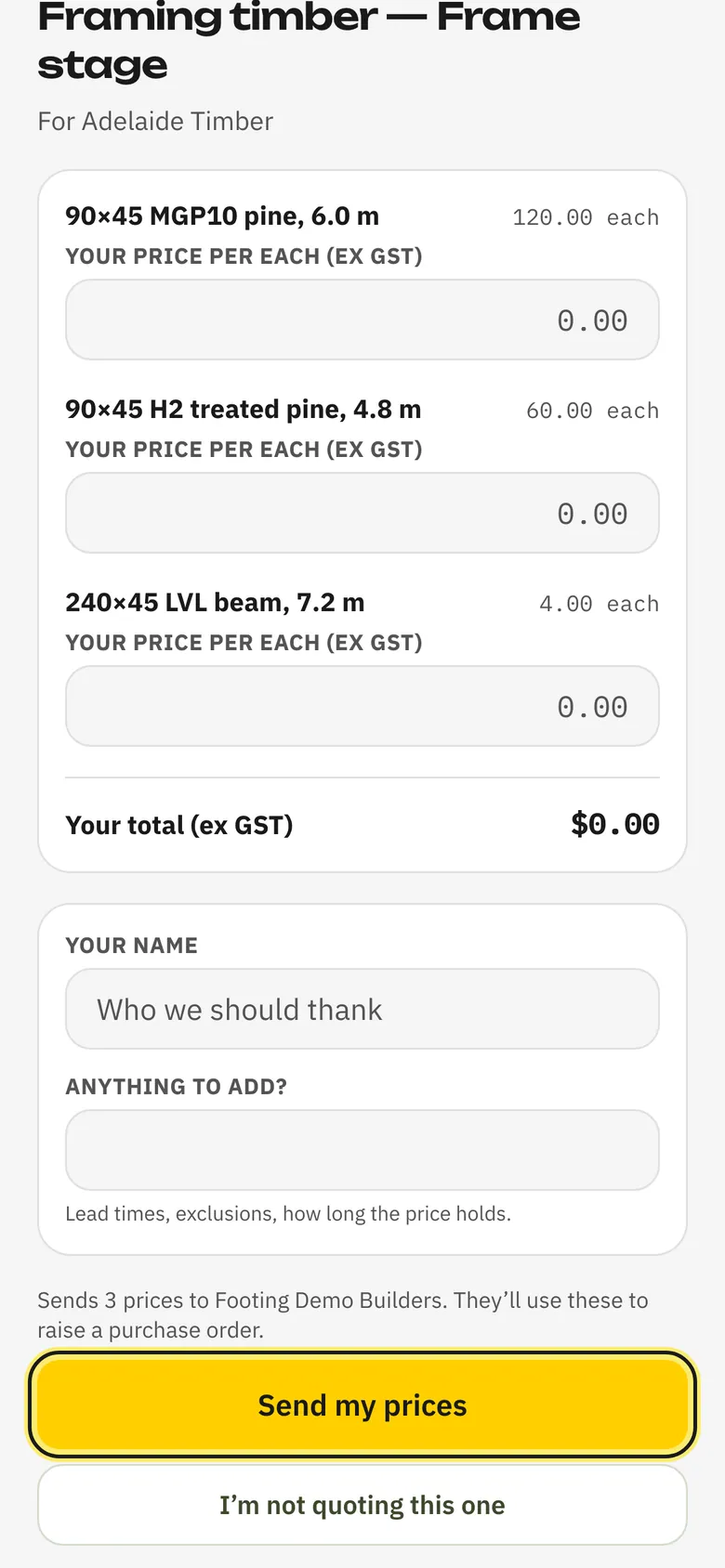
They tap Send my prices.
Not interested? They tap I’m not quoting this one, then Tell them I’m out.
Track it and turn it into an order
- On the RFQ, Supplier link shows when it was sent, when they opened it and when they responded. Copy link copies their link if you want to text it to them.
- In Procurement, under RFQs, each request shows how far it’s got: Sent, Opened, Replied.
- When they send prices, Footing fills them in on the RFQ, marks it Responded and lets you know. If they say they’re out, you hear about that too.
- No answer? In Procurement, under RFQs, click Chase, then Chase supplier. Footing emails them the same link again. This needs the supplier’s email.
- Got the price by phone or email instead? Open the RFQ. Type each price under Quoted and click Save on that line. Then click Mark responded.
Variance shows each price against your target. Happy with it? Click Accept & create PO, then Accept & create PO again to confirm. Footing closes the RFQ and makes a draft purchase order from it. Click Open purchase order, check it, then issue it to the supplier. See Send a purchase order.
Related guides
Still stuck? Email support@folkware.com.au and tell us what you were trying to do.